Profile
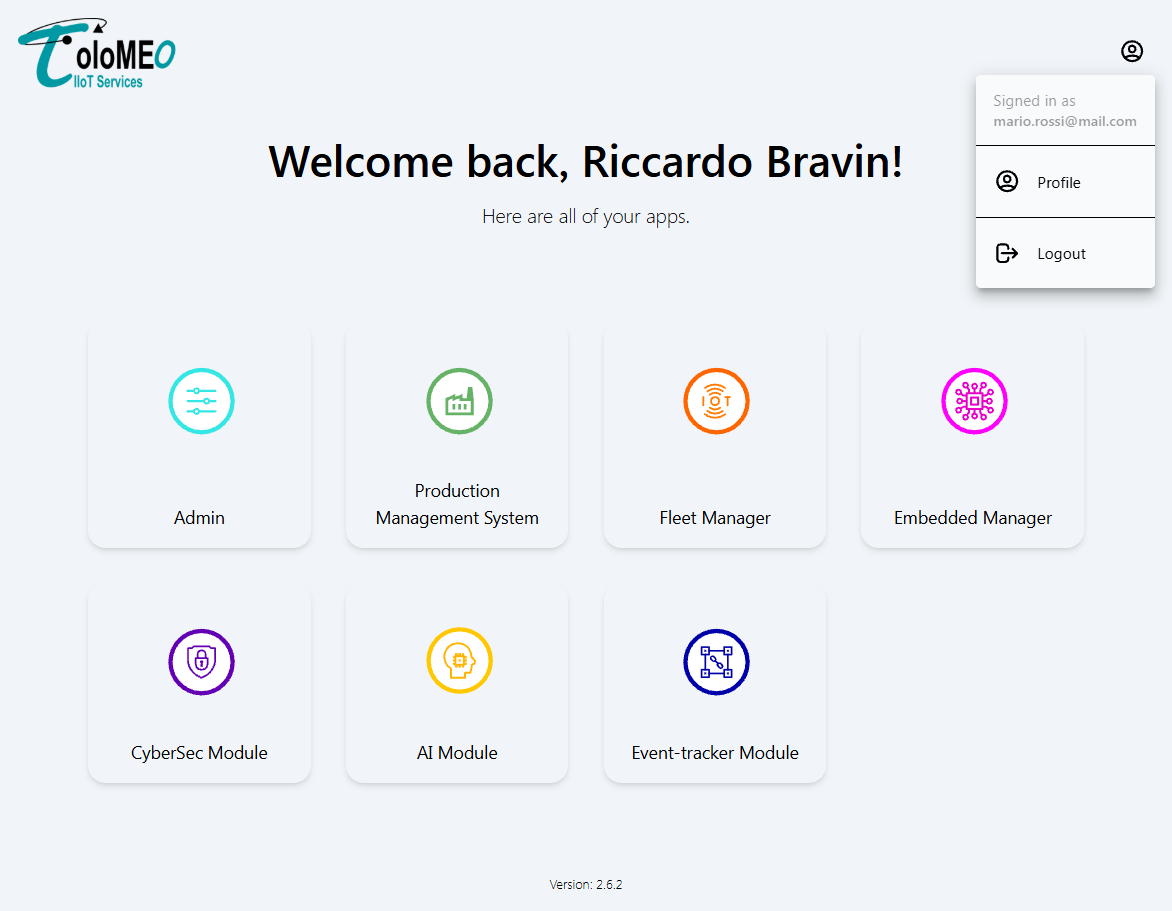
The Profile page is where each user manages their own account: personal details, language, password, two-factor authentication, and notification preferences. It is reached from the user icon in the top right corner of the ToloMEO home page, which shows the email of the signed in user and the Profile and Logout actions. Selecting Profile opens the page in a new browser tab.
The page lists its sections in a side menu. Changes made in a section are applied with its Save button. Certain actions require the user to sign in again before they are applied.
Profile settings
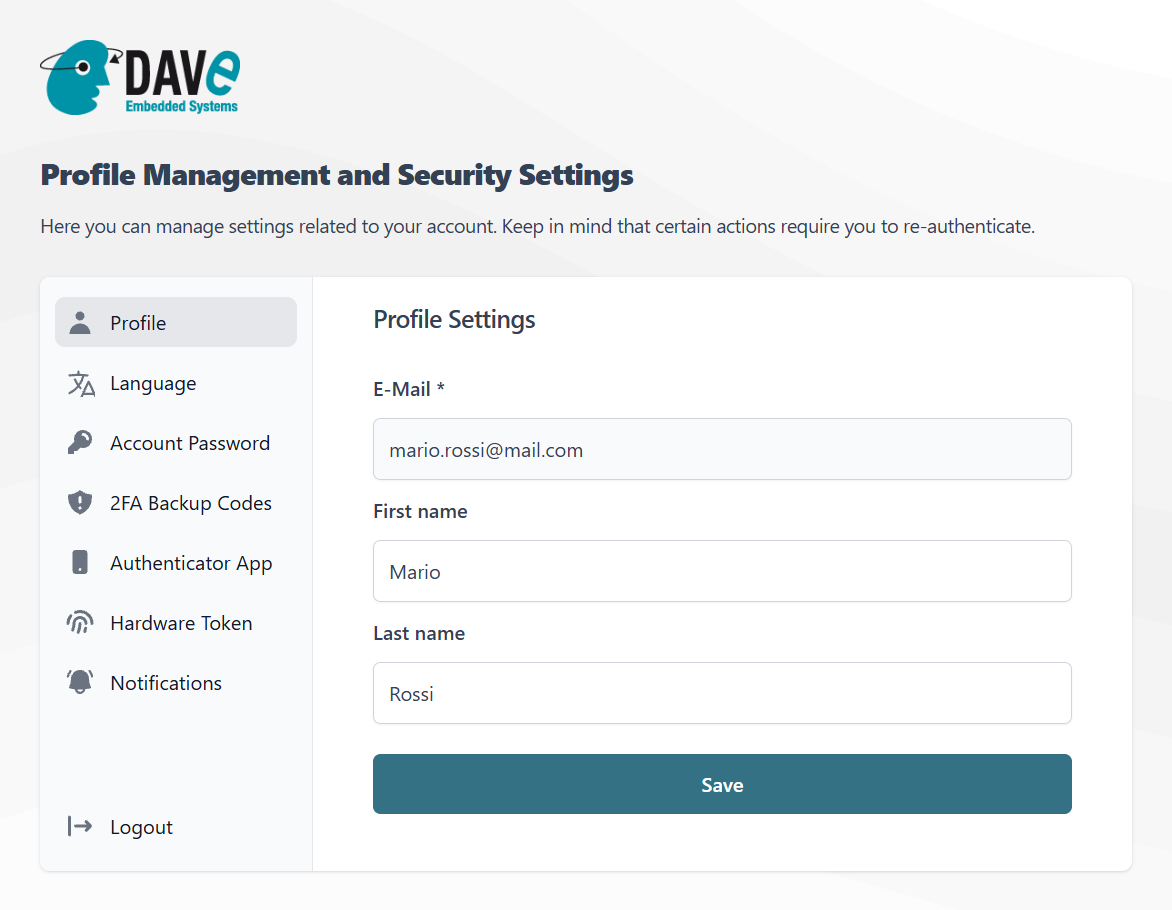
The Profile section shows the email the account is registered with, together with the first and last name of the user. The email identifies the account and cannot be changed from this page, while first and last name can be updated and saved.
Language
The Language section sets the language used across the ToloMEO platform for the signed in user.
Account password
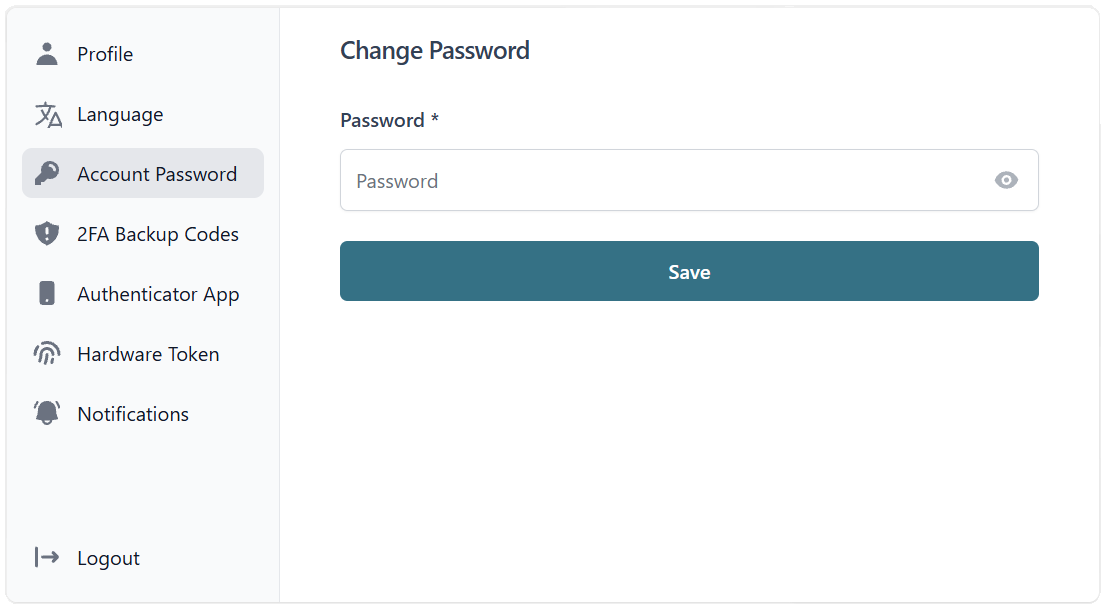
The Account Password section sets a new password for the account. The new password replaces the previous one as soon as it is saved.
Social sign in
The Social Sign In section links the account to an external identity provider, so that the user can sign in to ToloMEO with that provider instead of email and password.
Two-factor authentication
Two-factor authentication (2FA) adds a second step to the sign in: after the password, the user confirms their identity with a code from an authenticator app or with a hardware token. ToloMEO supports the following methods, which can be enabled independently:
| Method | Description |
|---|---|
| Authenticator app | Time-based one-time codes (TOTP) generated by a mobile app |
| Hardware token | Security keys such as YubiKey, or biometrics such as Face ID |
| Backup codes | Single-use recovery codes for when the other methods are lost |
Authenticator app
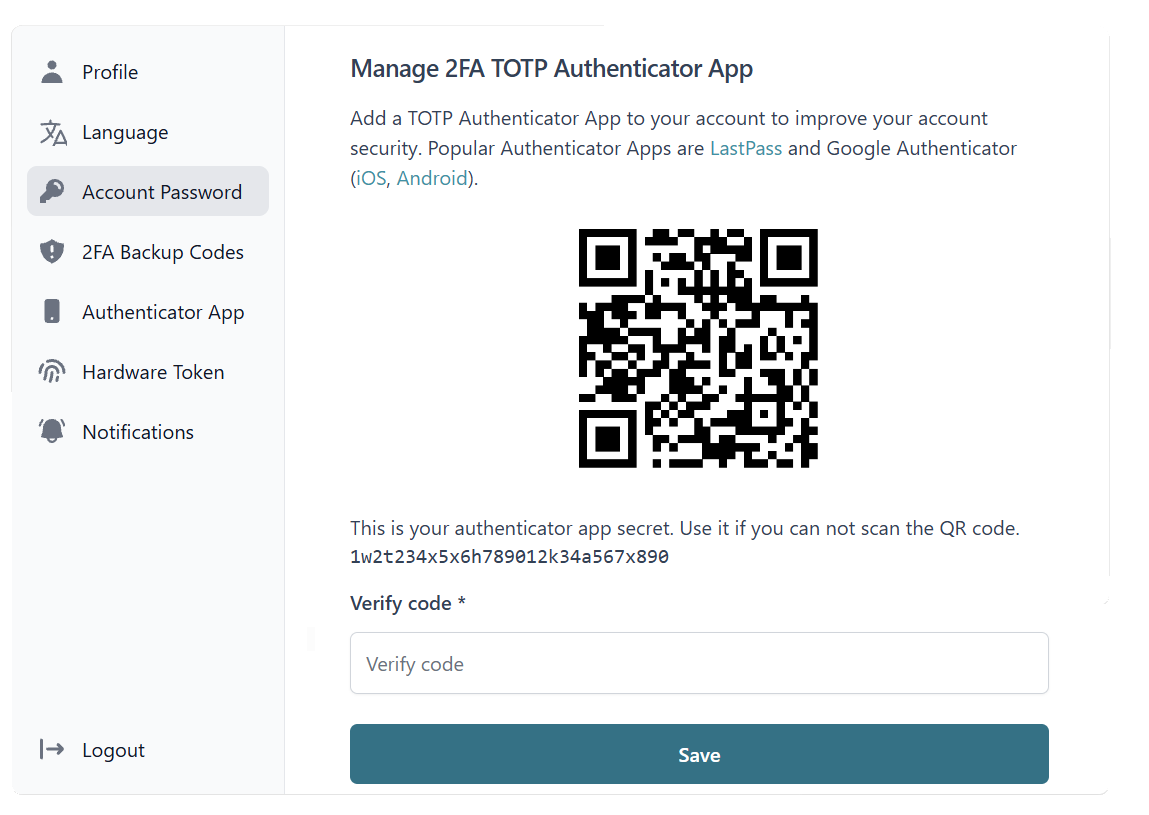
The Authenticator App section pairs a TOTP authenticator app, such as Google Authenticator, with the account. To pair it:
- Scan the QR code with the authenticator app. If the QR code cannot be scanned, enter the secret shown below it in the app instead.
- Type the code currently shown by the app in the Verify code field.
- Select Save.
From then on, signing in asks for the code shown by the app.
Hardware token
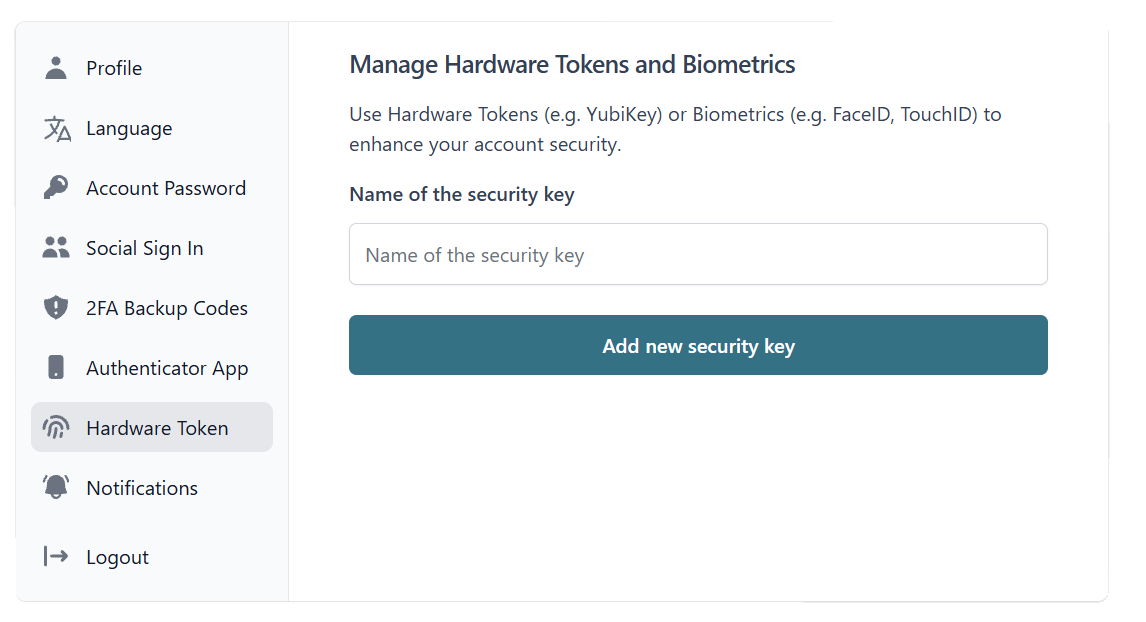
The Hardware Token section registers a hardware security key, such as a YubiKey, or the biometrics of the device in use, such as Face ID or Touch ID. Enter a name to recognise the key by, select Add new security key, and follow the prompts of the browser to complete the registration.
Backup codes
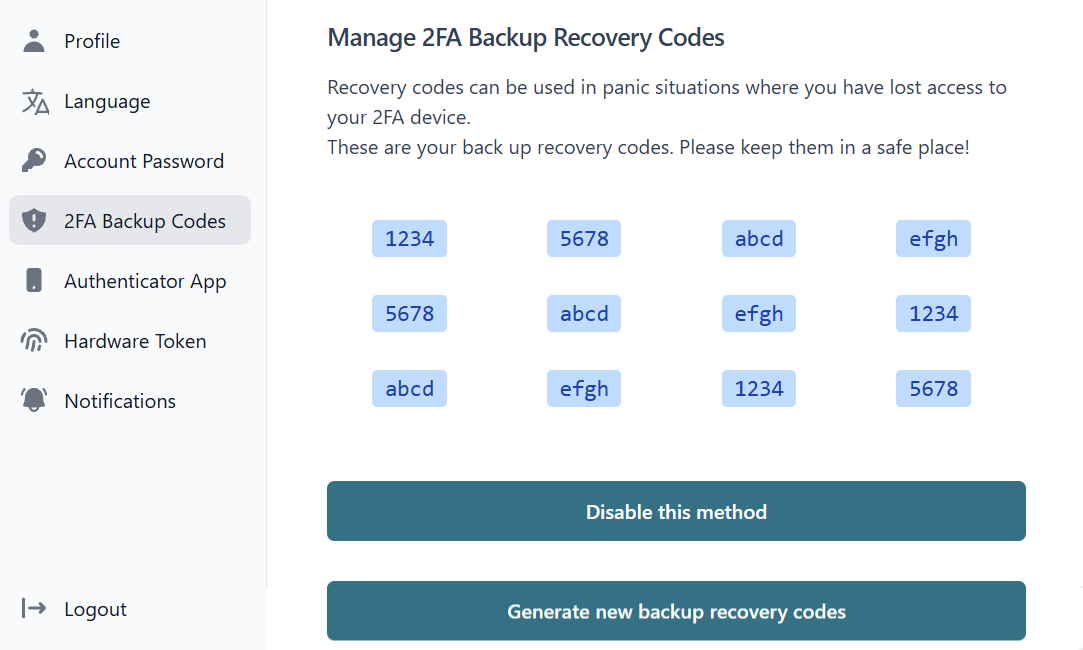
Backup recovery codes let the user sign in when they have lost access to their 2FA device. Each code can be used once. The 2FA Backup Codes section shows the current codes, which should be stored in a safe place, and offers two actions:
- Generate new backup recovery codes replaces the current codes with a new set.
- Disable this method removes the backup codes from the account.
Note
Enable backup codes together with an authenticator app or a hardware token. Without them, losing the 2FA device means losing access to the account.
Notifications
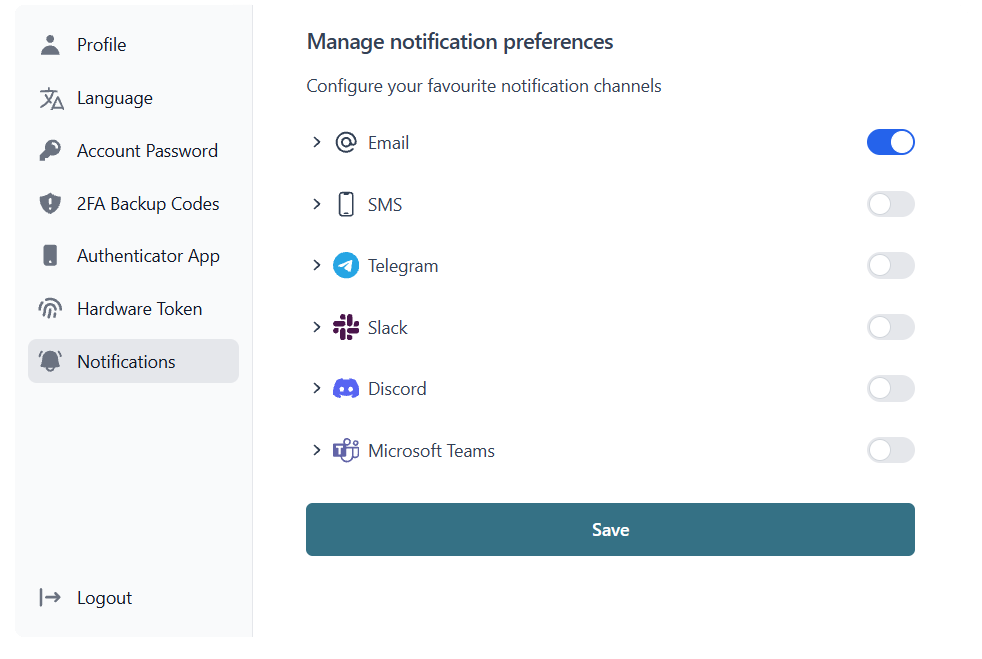
The Notifications section sets the channels through which the user receives notifications from the platform. Each channel can be turned on or off with its toggle, and expanded to show its settings. The available channels are Email, SMS, Telegram, Slack, Discord, and Microsoft Teams.
Logout
Logout, at the bottom of the side menu, signs the user out of ToloMEO.