Cybersecurity
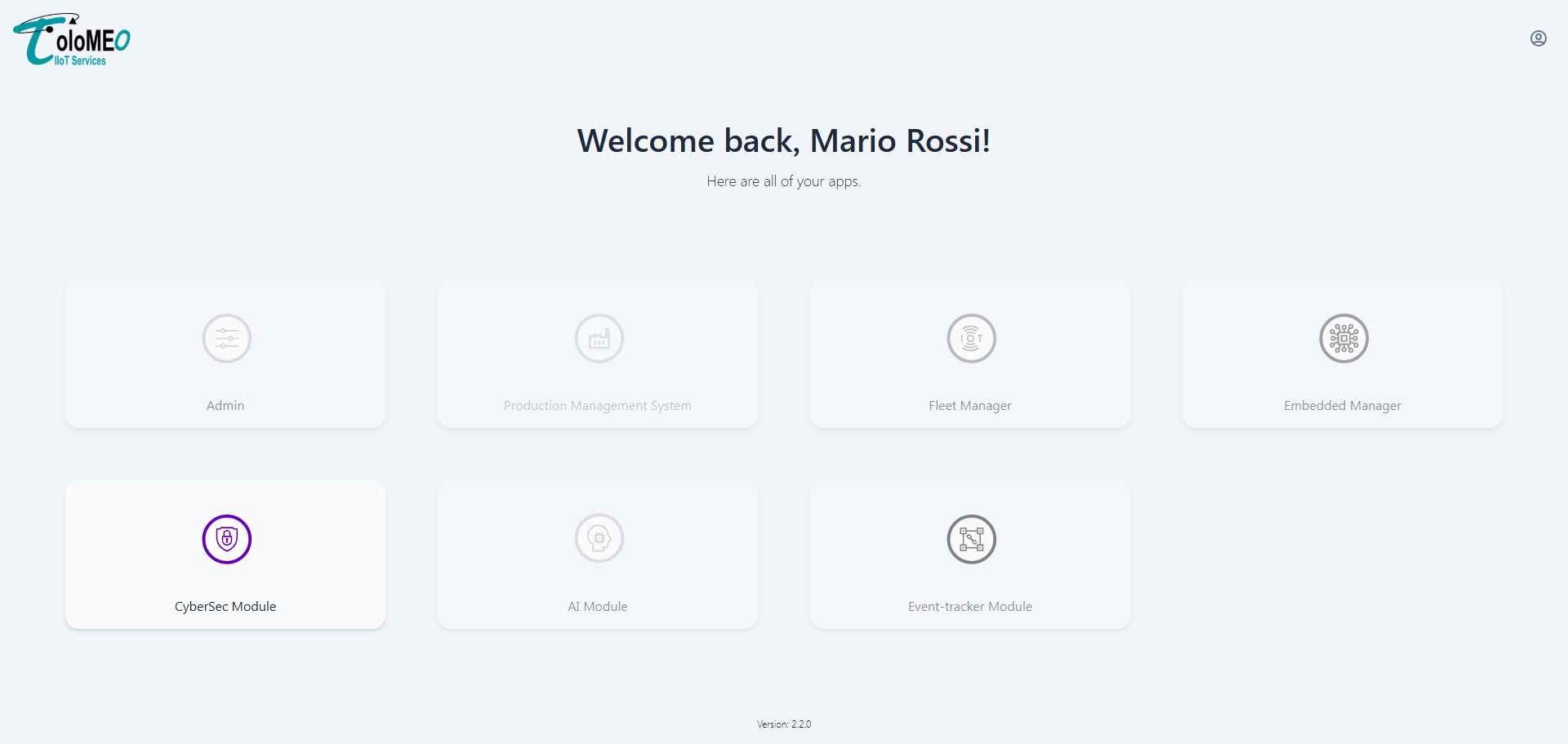
The Cybersecurity module provides SBOM-based vulnerability management for firmware models. It ingests software bill of materials files, runs CVE analysis, and gives operators the tools to triage findings, set up alert notifications, and generate PDF security reports.
SBOM, VEX and VDR
The module works with three related document types, all expressed in the CycloneDX format:
- SBOM (Software Bill of Materials)
- The inventory of every software component that makes up a firmware image, with versions and licenses. It answers the question "what is inside this firmware". It is the input to the analysis: components are matched against CVE databases to discover which known vulnerabilities could affect the image.
- VEX (Vulnerability Exploitability eXchange)
- The assessment layer on top of the SBOM. For each vulnerability it records whether the product is actually affected and why, so that CVEs which are present in a component but not reachable or exploitable in your build can be marked not affected with a justification. It answers "does this vulnerability actually matter for this product", turning a raw list of CVE matches into a triaged risk picture.
- VDR (Vulnerability Disclosure Report)
- A single document that combines the component inventory with the current state of every known vulnerability and its assessment. It is the artifact you hand to a customer or auditor as the machine-readable statement of a firmware version's security posture at a point in time.
Maintaining these documents is increasingly a regulatory requirement rather than a good practice. The EU Cyber Resilience Act (CRA) obliges manufacturers of products with digital elements to produce and keep an SBOM and to handle vulnerabilities across the product lifecycle, and the industrial security standard IEC 62443 (notably 62443-4-1) requires a defined process for identifying, assessing, and disclosing vulnerabilities in the components a product ships. The SBOM, VEX, and VDR are the concrete evidence that satisfies these obligations, and this module is built around producing and keeping them current.
Vulnerability sources
Components are matched against the following public vulnerability databases:
| Database | Description |
|---|---|
| NVD | The National Vulnerability Database, the reference catalogue of published CVEs |
| GitHub Advisory Database | Security advisories for open source software, including CVEs and GitHub-reviewed advisories |
The databases are updated automatically every day at 00:00, and every tracked firmware version is matched against the latest data, so that newly disclosed vulnerabilities show up on versions that are already in the field. See Alerts to be notified when this happens.
Each finding is also enriched with two indicators that help decide what to look at first:
- KEV (Known Exploited Vulnerabilities)
- Marks findings whose vulnerability is listed in the CISA or ENISA catalogues of vulnerabilities known to be exploited in the wild.
- EPSS (Exploit Prediction Scoring System)
- The estimated probability that a vulnerability will be exploited in the next 30 days.
Models
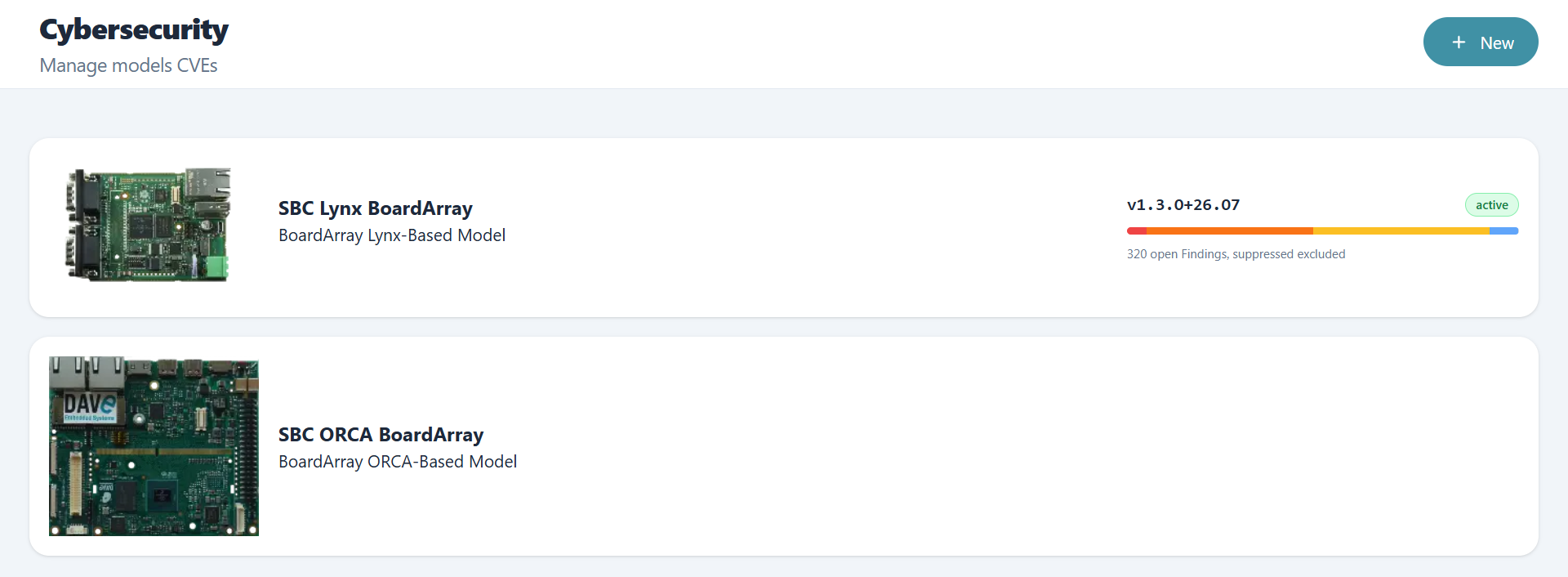
Cybersecurity tracking is organized per model, mirroring the PMS model hierarchy: each tracked model collects the releases of its firmware for which an SBOM was uploaded.
The Models page lists the tracked models. Each card shows the model's active release and a bar with its open findings by severity, suppressed findings excluded. These counts are refreshed by the analysis engine and can be up to a day behind.
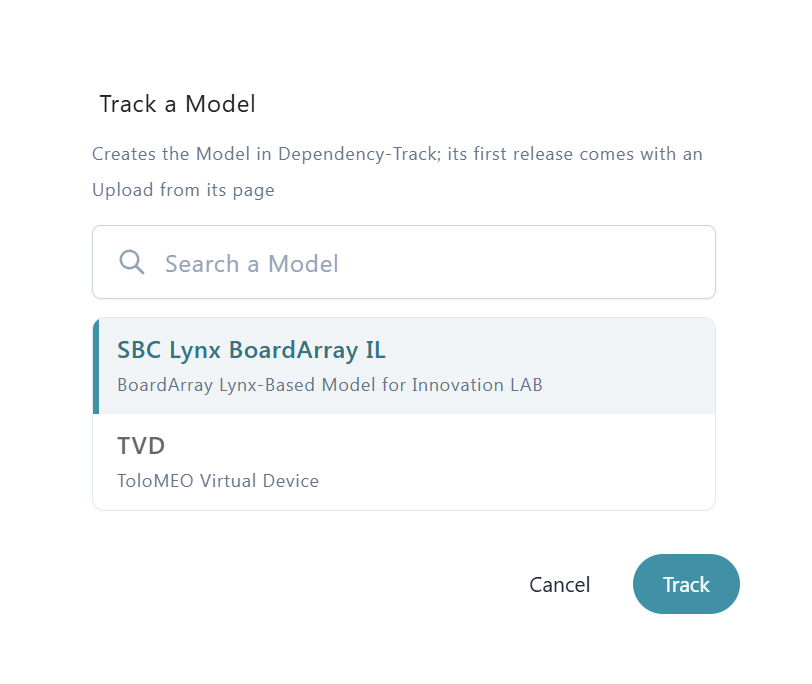
To start tracking a model, use the New button and pick it from the list of models that are not tracked yet. Only models visible to you in PMS that have a firmware can be tracked. A newly tracked model has no release: its first release comes with the first upload from the model page.
Model page
Opening a model shows all the information about its releases. From the page header you can:
- generate a report for the selected release;
- upload the SBOM and/or VEX of a new release;
- download the SBOM, VDR, or VEX of the selected release.
Releases
Below the header, the release strip shows one tile per release, with its version, a bar with its open findings by severity, and its upload date. Releases are ordered by version, newest first, and the Active release is always shown even when it is older than the ones on the strip. When a model has more releases than the strip can show, the All releases tile opens a searchable list of every release.
Tiles can carry the following labels:
| Label | Meaning |
|---|---|
| Active | The release marked as active on the model's firmware in PMS |
| Pre-release | A version tracked in Cybersecurity before a firmware release with the same version is published in PMS |
| Processing | The SBOM or VEX of the release is still being analysed |
| Failed | The last upload of the release did not complete, see Uploading an SBOM |
A pre-release lets you assess a firmware version before it ships. It becomes a regular release as soon as a firmware release with the same version is published in PMS.
Release summary
On the left of the page, a set of cards summarizes the selected release:
- Upload
- When the SBOM was uploaded, whether a VEX came with it, and the upload status. From here you can upload a new VEX for the release or delete it.
- Open findings by severity
- The total of open findings and their split by severity. Suppressed findings are not included and are counted separately below.
- Assessed
- The share of findings that have an assessment state other than Not set, In triage included, how many are still to assess, and the count for each state.
- Known exploited
- The number of open findings listed in a KEV catalogue.
- Risk score
- The risk score computed from the release's findings, together with its number of components.
On the right, the tabs described below give access to the details of the release.
Overview
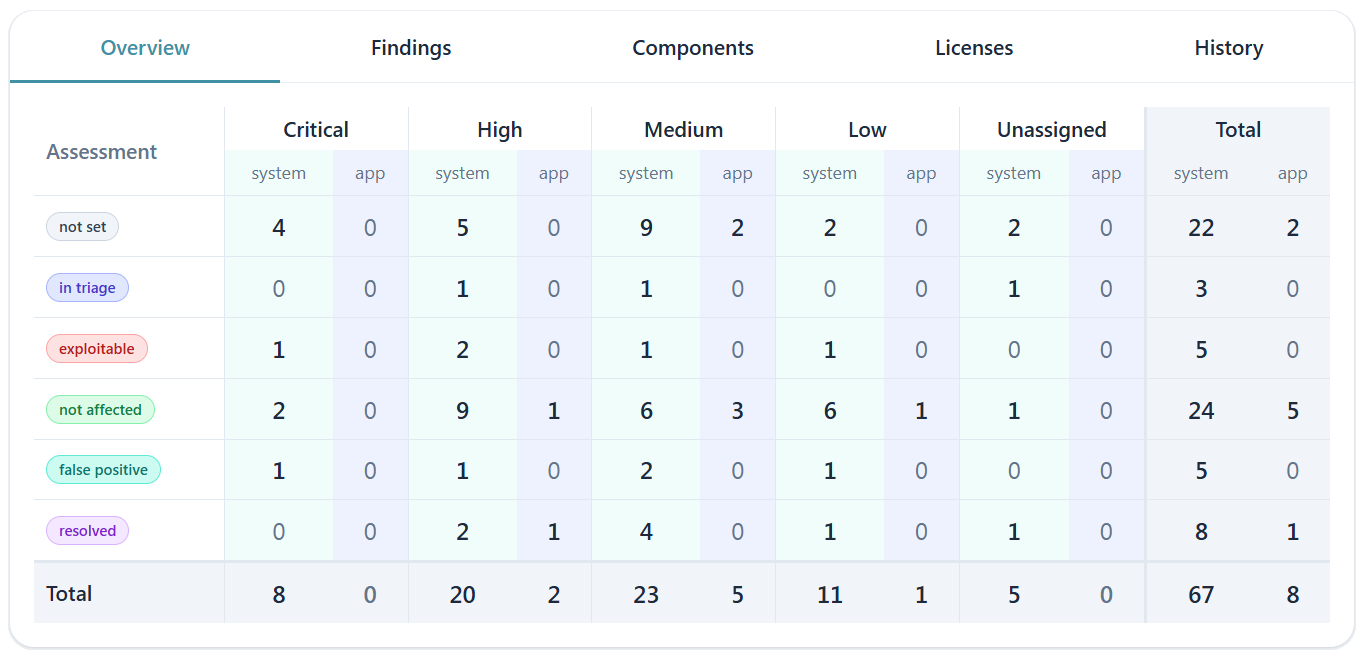
The Overview tab shows a matrix of the findings of the selected release. Rows are the assessment states, columns are the severities, and each severity is further split between:
- System
- Findings in components supplied by DAVE Embedded Systems, such as the ones coming from the meta-tolomeo layers.
- App
- Findings in every other component, such as the customer's own software and customizations.
Each cell, including the totals, can be clicked to open the Findings tab filtered on that combination.
Findings and assessment
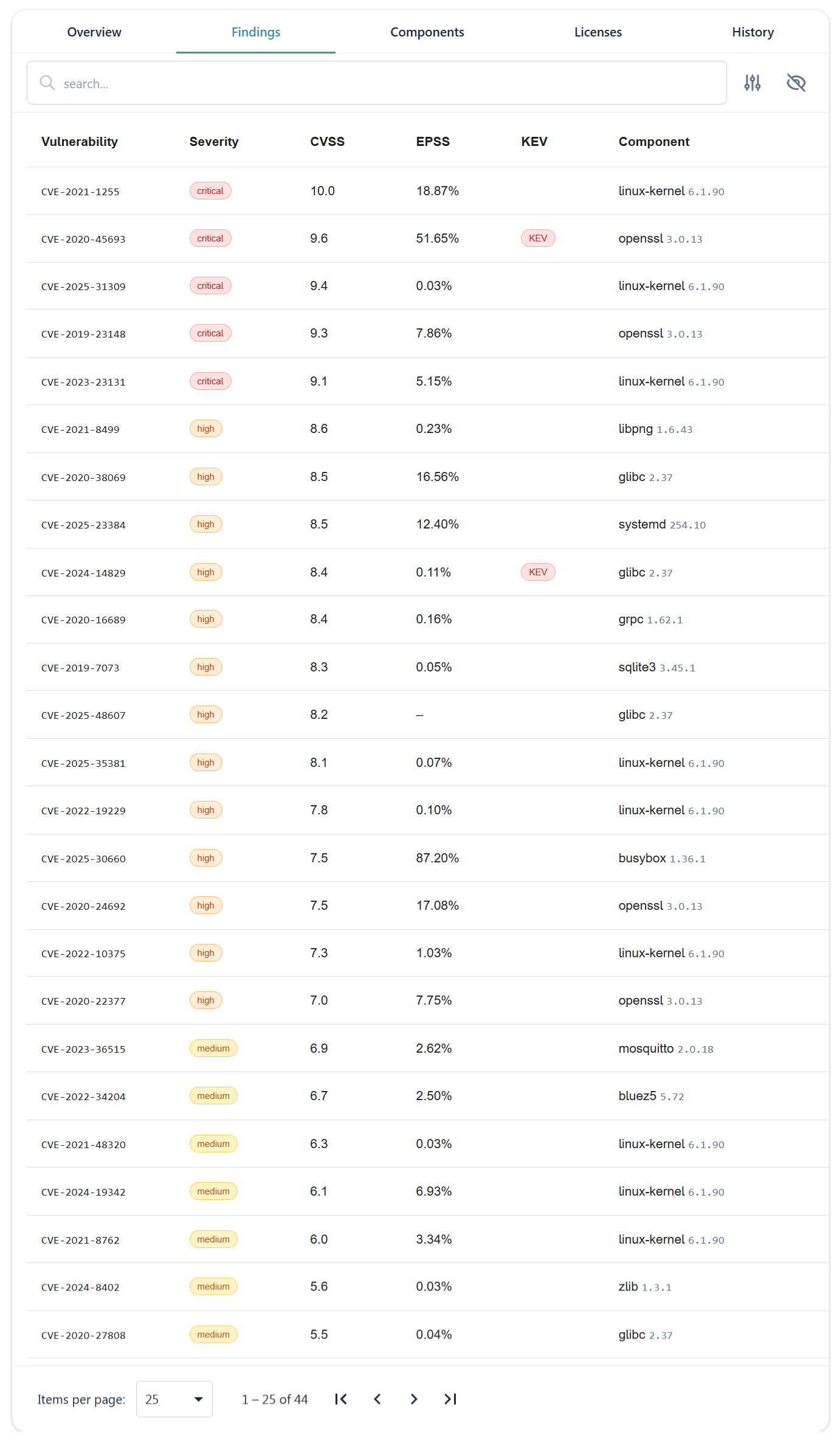
The Findings tab lists every vulnerability matched to a component of the release, sorted by CVSS score from the highest. For each finding it shows the vulnerability identifier, severity, CVSS score, EPSS probability, whether it is known exploited (KEV), the affected component and version, its System or App layer, and its assessment. All columns can be sorted and filtered, and CVSS and EPSS can be filtered by range.
The vulnerability identifier links to its public advisory, opened in a new tab: NVD for CVEs, the GitHub Advisory Database for GitHub advisories, and OSV for the identifiers of other ecosystems.
Suppressed findings are hidden by default and can be shown with the eye button in the table toolbar.
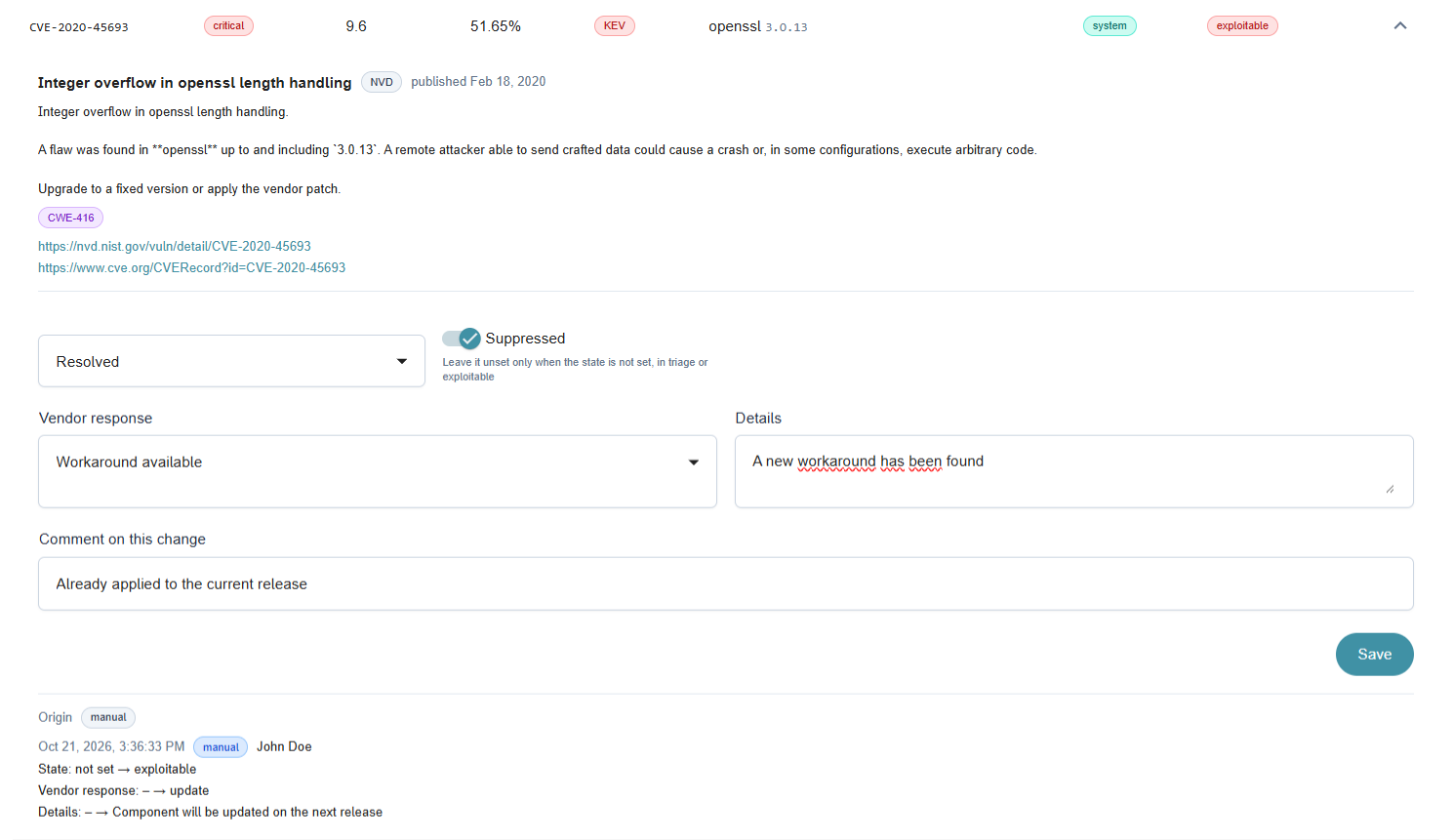
Expanding a finding shows the description of the vulnerability, with its publication date, CWEs, and references, together with its assessment. Users with enough permissions can edit the assessment, which is made of:
- State
- The analysis state of the finding, see the table below.
- Suppressed
- Whether the finding no longer needs attention. Suppressed findings are left out of the open findings counts and of the risk score, but remain listed and appear in reports. Leave it unset while the state is Not set, In triage, or Exploitable.
- Justification
- Why the product is not affected. Required when the state is Not affected: code not present, code not reachable, requires configuration, requires dependency, requires environment, protected by compiler, protected at runtime, protected at perimeter, or protected by mitigating control.
- Vendor response
- How the vulnerability is being addressed: can not fix, will not fix, update, rollback, or workaround available.
- Details
- A free-text explanation of the assessment.
Each change can be accompanied by a comment. The available states are:
| State | Meaning |
|---|---|
| Not set | Not yet looked at |
| In triage | Received, being assessed |
| Exploitable | The vulnerability is reachable and poses a real risk |
| Not affected | The vulnerability exists in a component you ship but cannot be reached or exploited in your context |
| False positive | The vulnerability was matched to the component by mistake |
| Resolved | A fix has been applied |
The origin of the assessment tells whether its state was last set by a VEX upload or manually. Every change is kept in the assessment history, newest first, with its origin, author, the fields that changed, and its comment.
Components
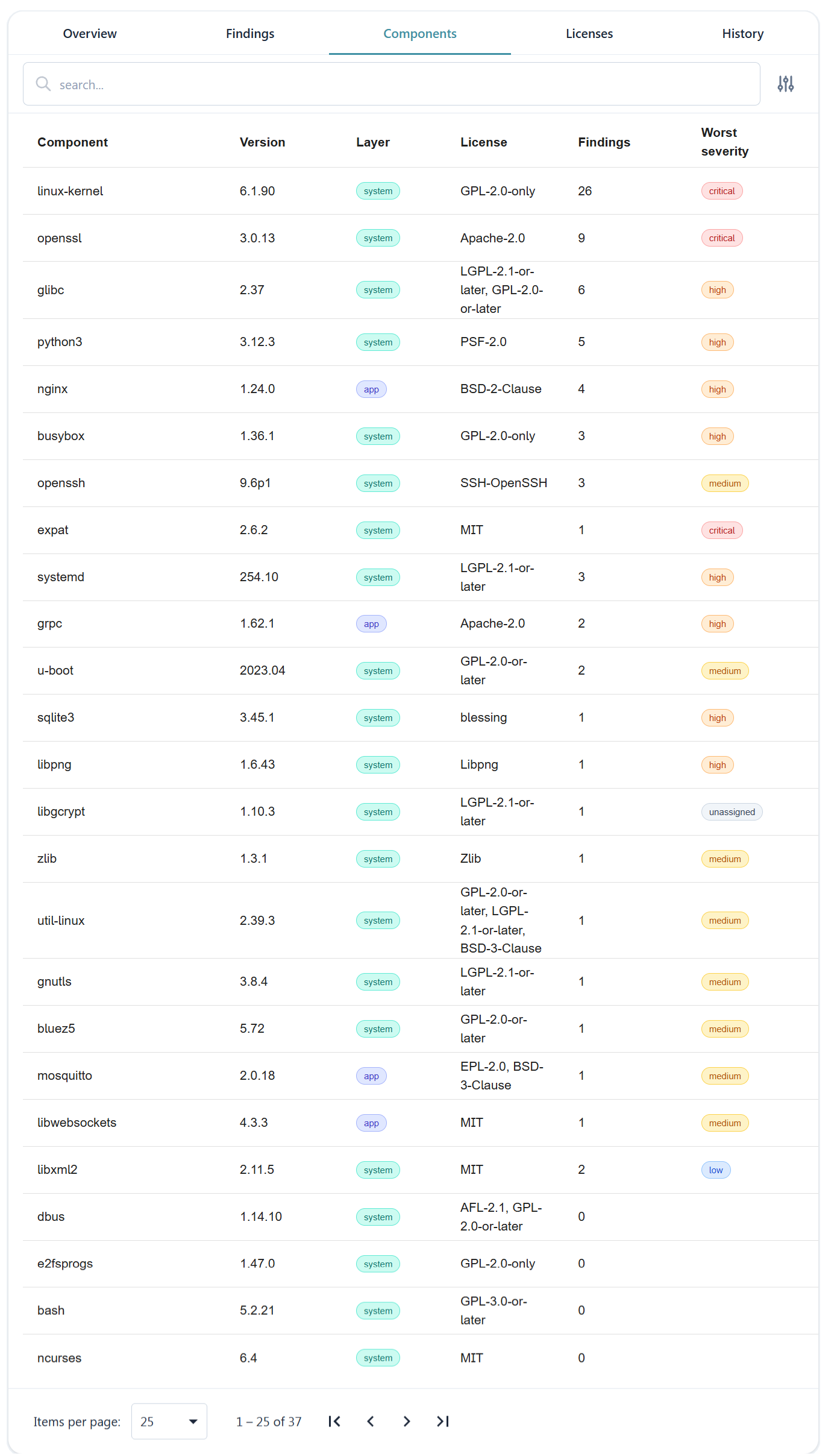
The Components tab lists every component of the release with its version, System or App layer, licenses, number of findings, worst severity, and risk score. Components are sorted by risk score from the highest, and clicking one opens its findings.
Licenses
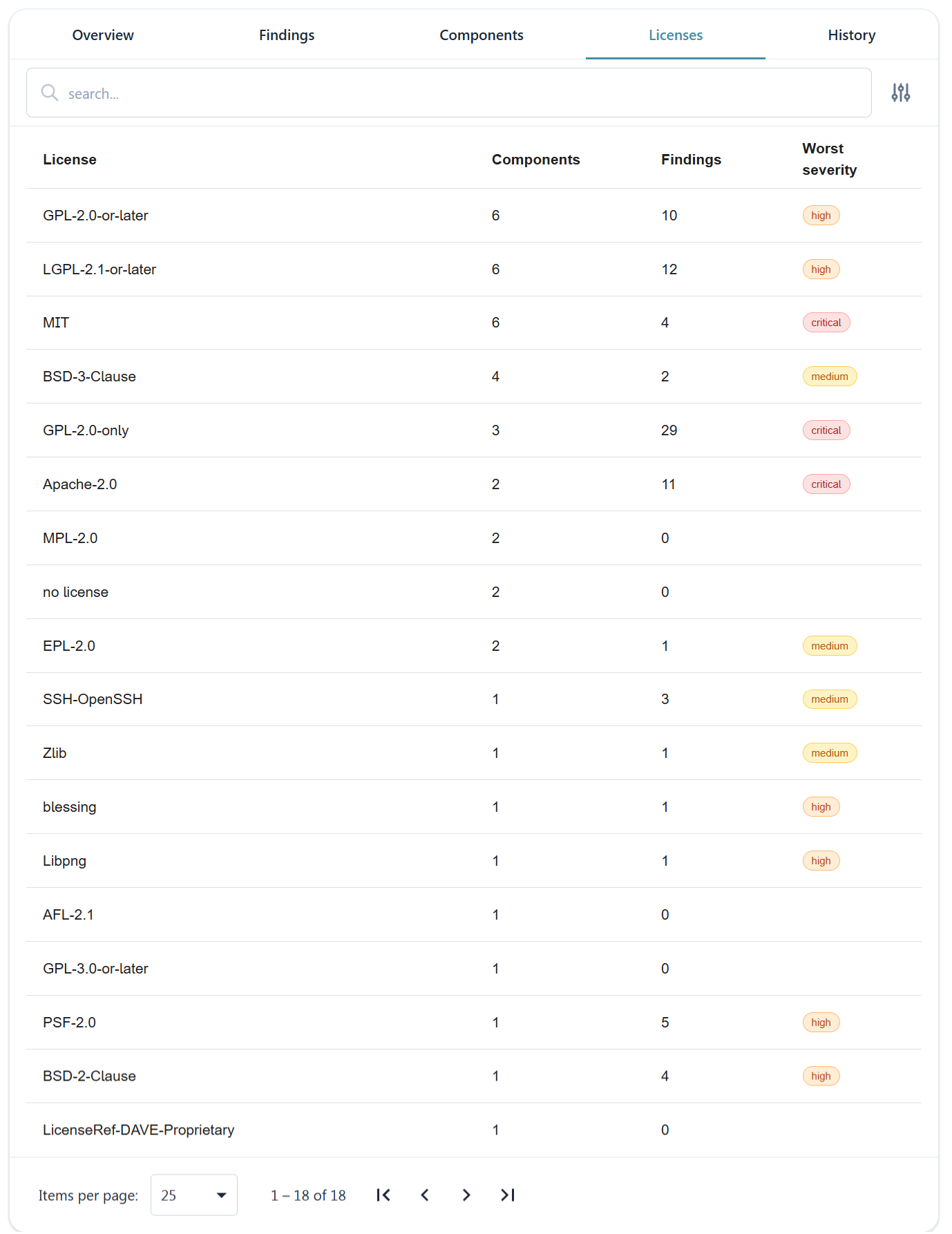
The Licenses tab lists the licenses found in the release, with the number of components that declare each of them, their findings, and their worst severity. A component that declares more than one license counts under each of them, and components without a license are grouped together. Clicking a license opens the components that declare it.
History
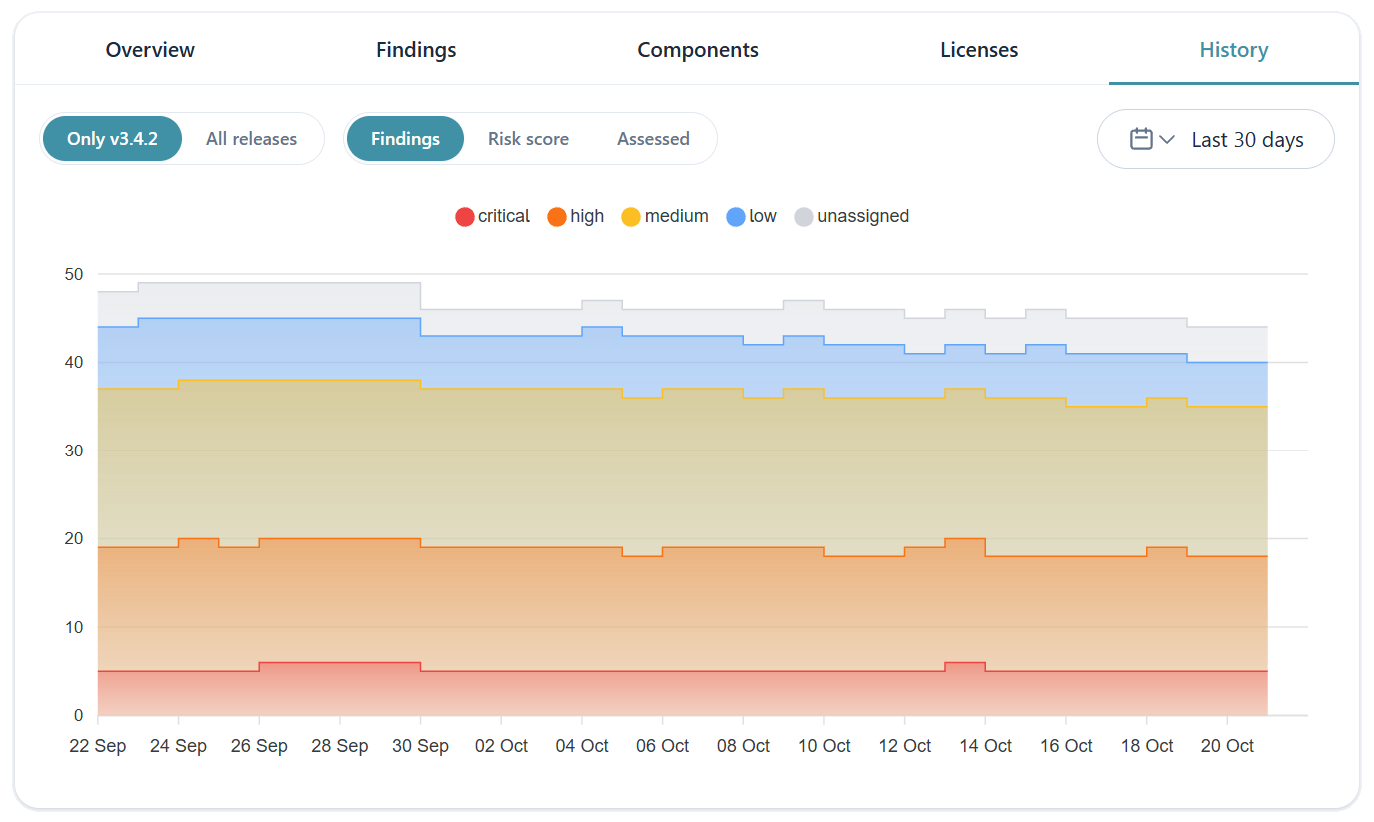
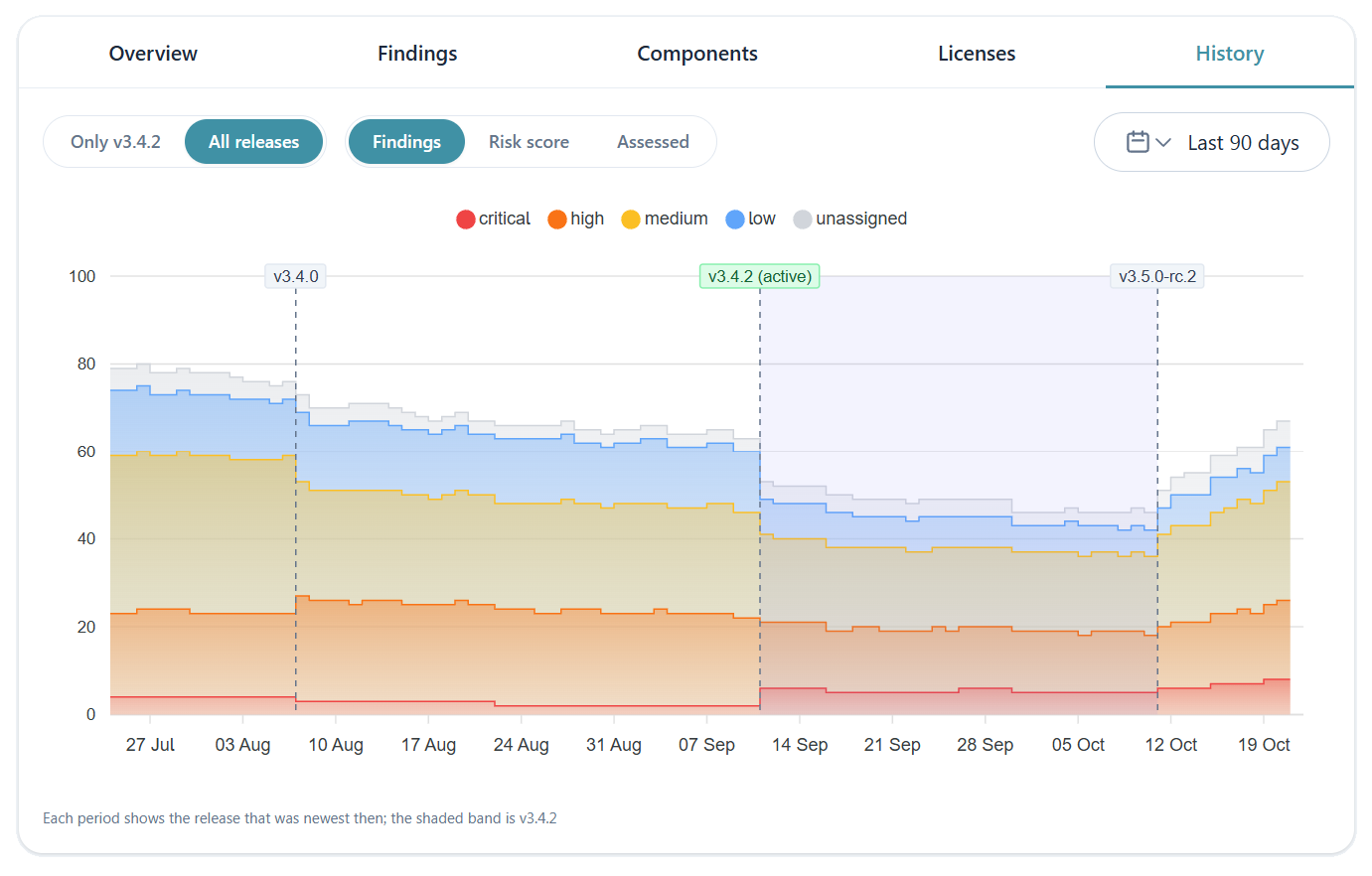
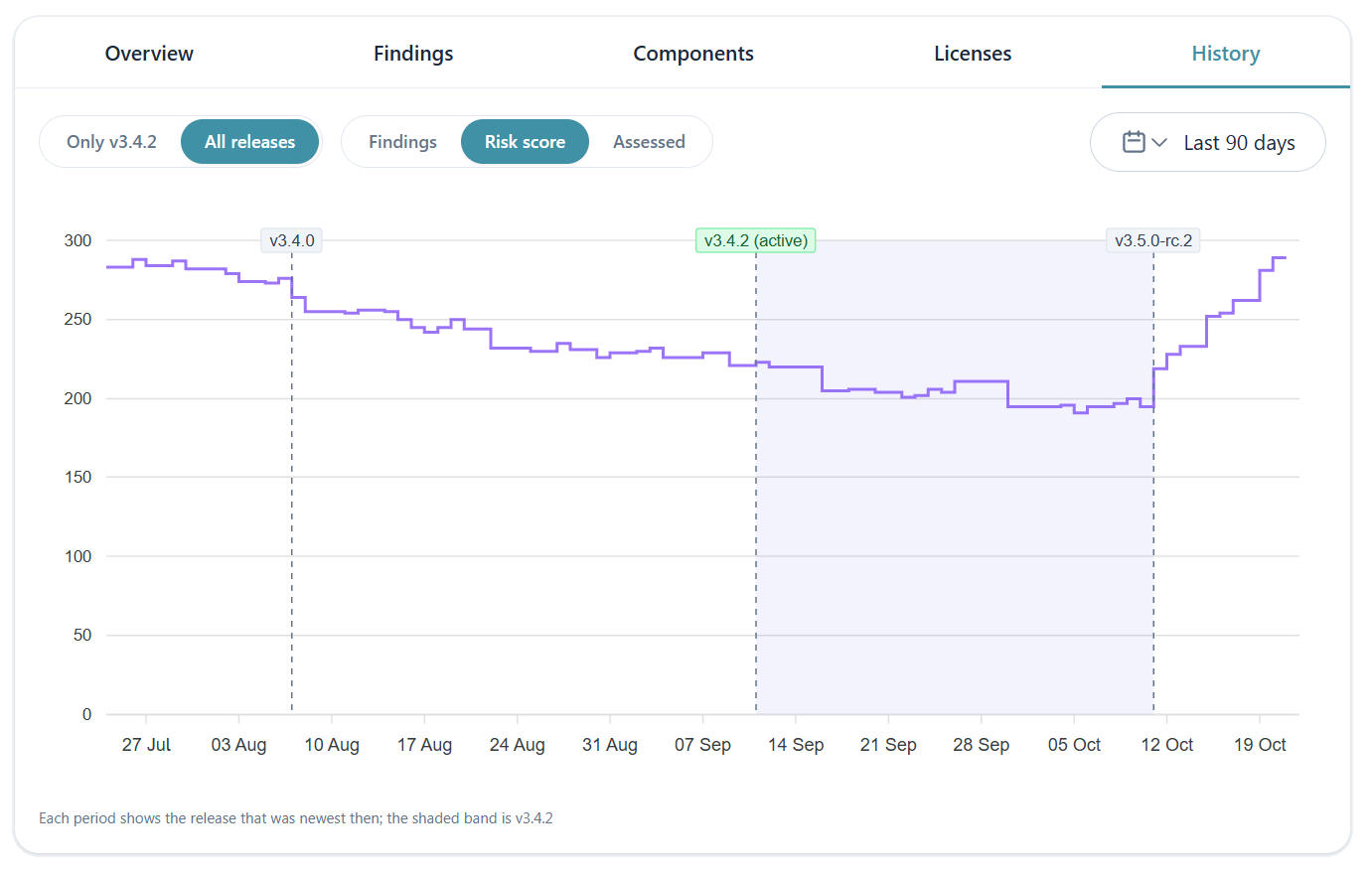
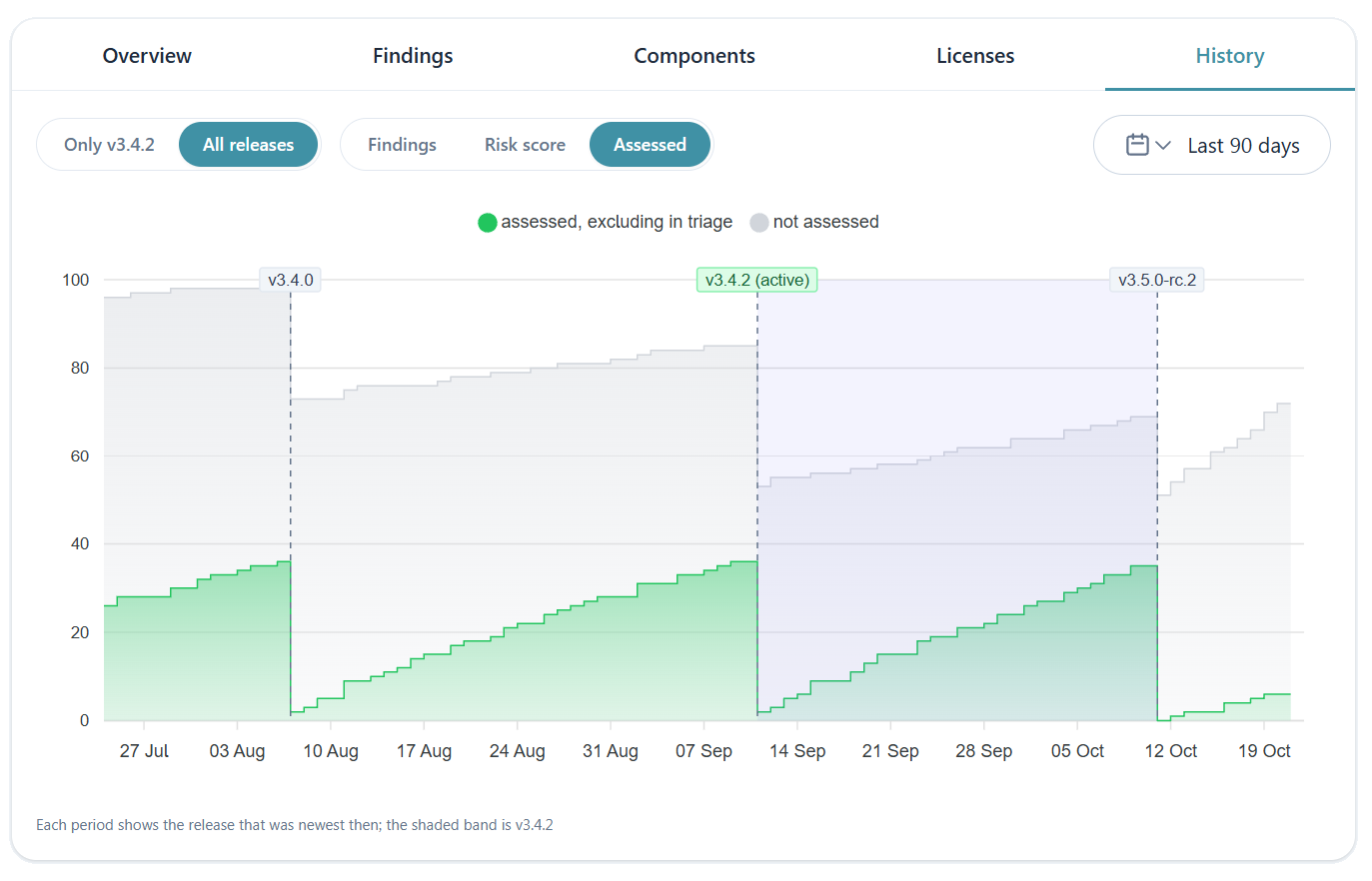
The History tab charts the daily evolution of either the open findings by severity, the risk score, or the number of assessed findings, over the last 7, 30, or 90 days or a custom range. The assessed count shown here leaves In triage out, so it can differ from the Assessed card of the summary.
The chart can show either the selected release alone, starting from its upload, or all the releases of the model. In the latter case each day shows the release that was the newest one at the time, a marker shows when each release was uploaded, and the period of the selected release is shaded.
Uploading an SBOM
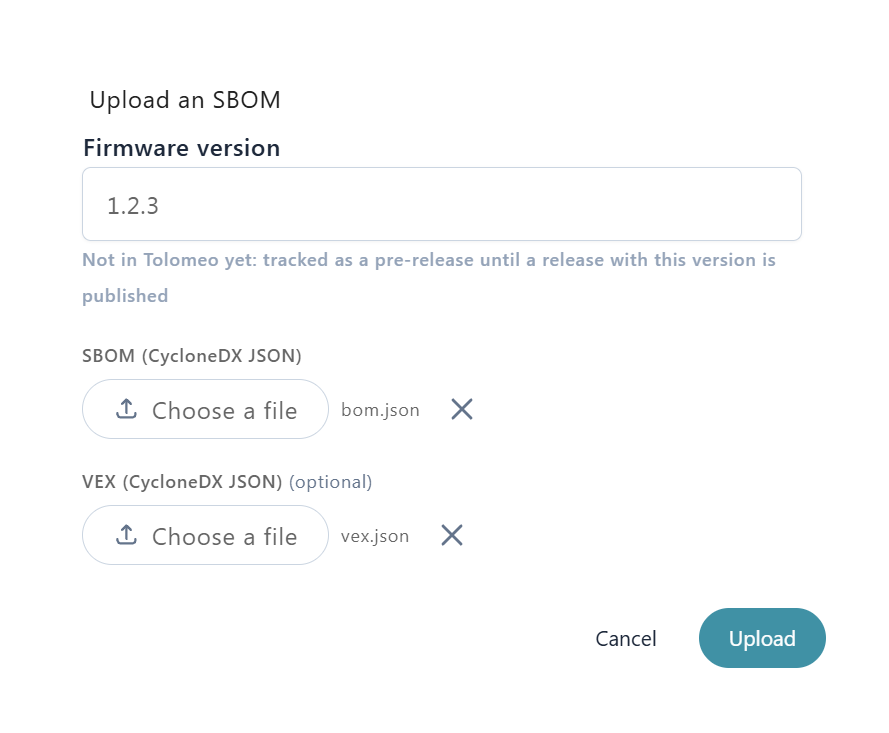
Upload The Upload button creates a new release of the model from its SBOM. In the dialog:
- Type the firmware version, or pick it among the firmware releases of the model published in
PMS. A version that is not in PMS yet is tracked as a pre-release and must
follow SemVer 2.0, for example
1.4.0or1.4.0+26.09. - Choose the SBOM file, in CycloneDX JSON format.
- Optionally choose the VEX file, in CycloneDX JSON format, to apply your assessments to the findings right away.
Both files are checked before the upload: the SBOM must list its components, the VEX must contain analysed vulnerabilities, and together they must stay under 50 MB. Only one upload at a time can run for each model.
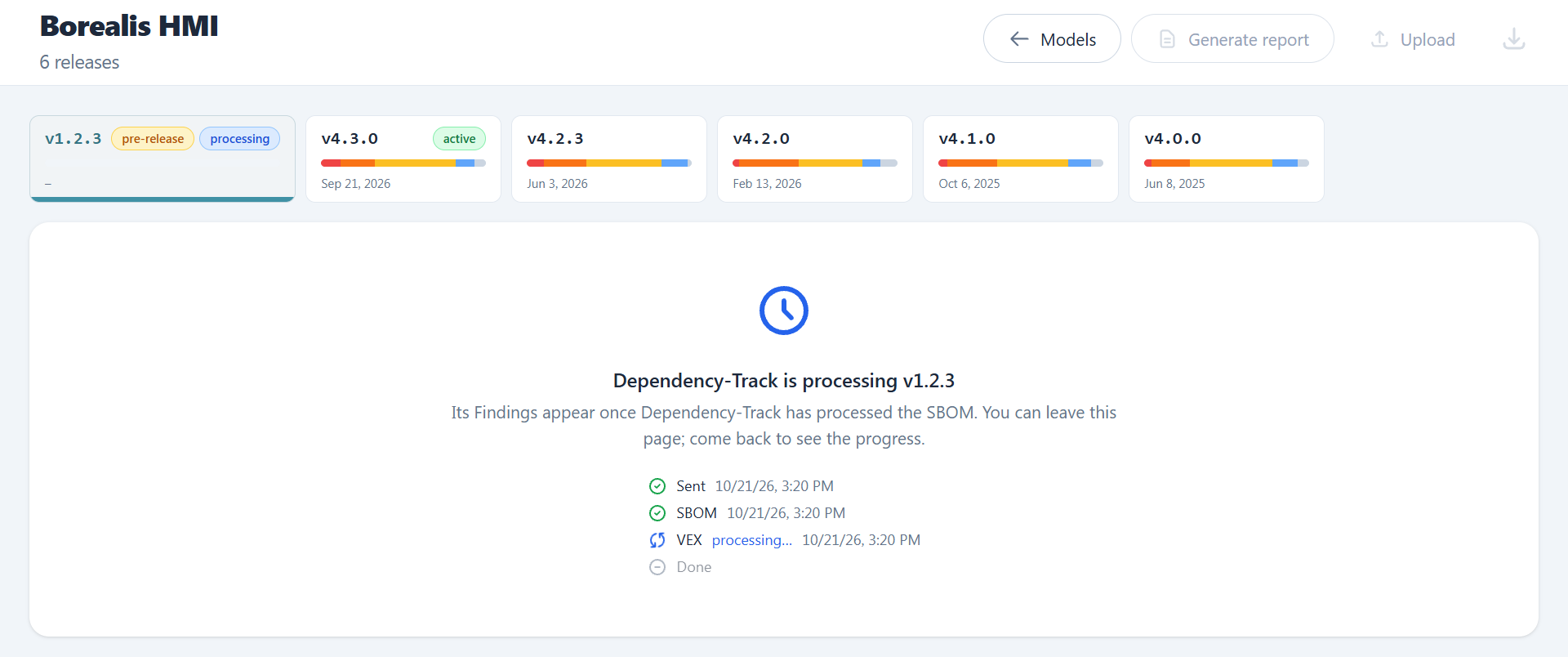
Once started, the upload goes through its steps (sent, SBOM, VEX, done) and the findings of the release appear when the SBOM has been processed. You can leave the page meanwhile and come back later to check the progress. If the SBOM cannot be processed, the release is not kept and the upload can be done again. If only the VEX fails, the release is kept with its findings shown without the VEX statements, and the VEX can be uploaded again.
A new VEX can be uploaded at any time for an existing release from the Upload card of the summary, for example to import assessments made outside ToloMEO.
An SBOM cannot be replaced: to fix a wrong one, delete the release and upload it again. Deleting a release loses its assessments, while its reports and the alarms watching it are kept.
SBOM and VEX are all results of builds from the meta-tolomeo metalayer or can be obtained as well from the automated builds in the Embedded Manager. For a step-by-step walkthrough of uploading, triaging, and reporting, see the SBOM Tracking flow.
Downloads
The download button in the page header lets you download the artifacts of the selected release:
| Download | Content |
|---|---|
| SBOM | The tracked Software Bill of Materials in CycloneDX format |
| VDR | A Vulnerability Disclosure Report combining the component inventory with the outstanding vulnerabilities and their state |
| VEX | The current Vulnerability Exploitability eXchange, reflecting the assessments made so far |
The VDR is a machine-readable counterpart to the human-readable PDF Reports: it is meant to be shared with customers or auditors as a single document describing both what the firmware contains and how each known vulnerability was assessed.
Analysis
The Analysis section provides advanced visualization and comparison tools to understand vulnerability trends and component evolution across firmware versions.
Deep Dive
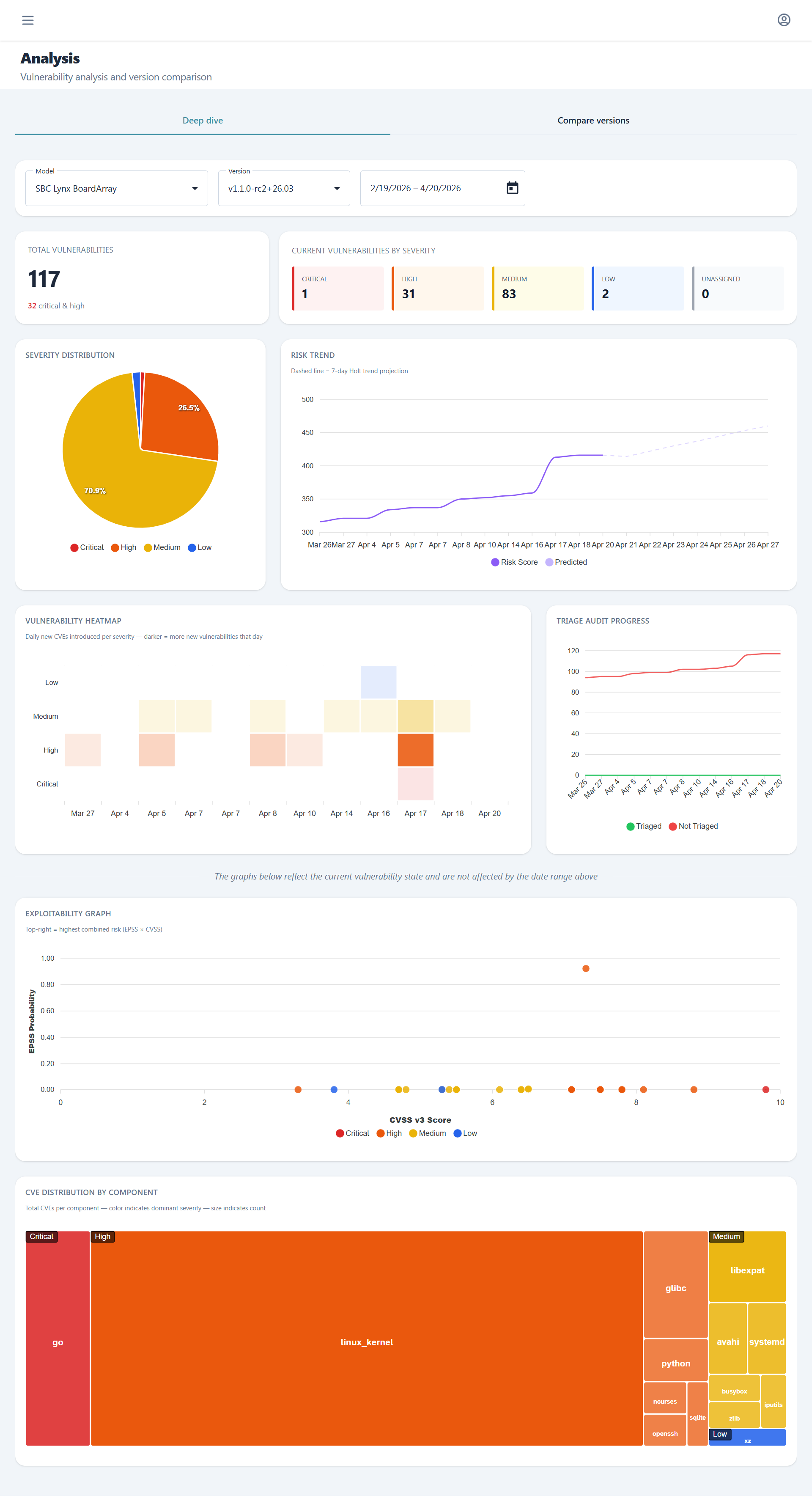
The Deep Dive tab shows, for a model and release of your choice, a set of charts on its findings. Charts that follow the selected date range show:
- the open findings over time, by severity;
- the severity distribution of all the findings, suppressed included;
- the risk score trend;
- the new findings per day, by severity;
- the assessment progress.
Charts that show the release as it is today show:
- the exploitability of each finding, plotting its CVSS score against its EPSS probability, so that the most severe and most likely exploited findings stand out in the top right corner;
- the components with the highest risk score, sized by their number of findings and coloured by their worst severity.
Compare Versions
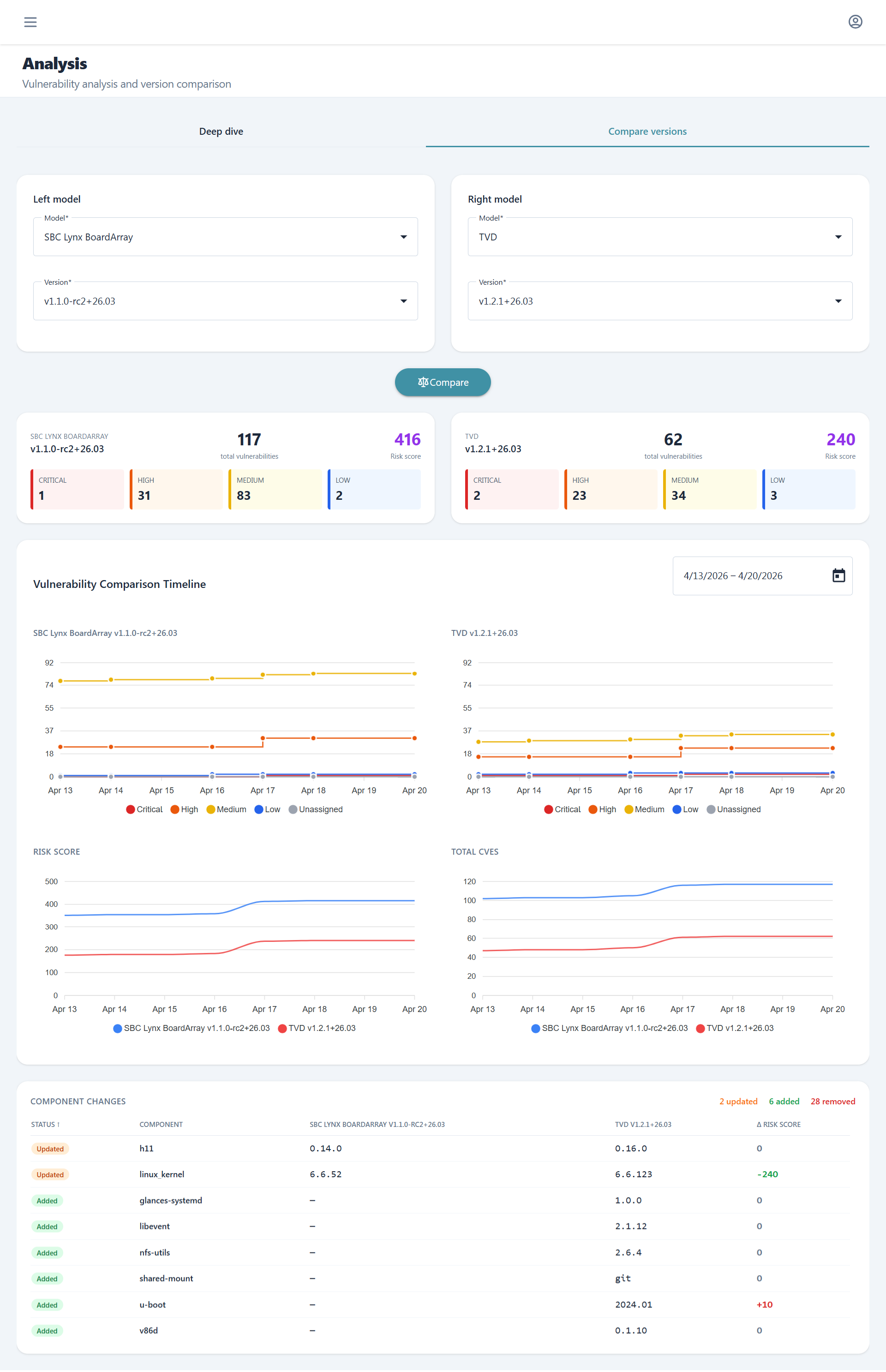
The Compare Versions tab compares two releases, of the same model or of different ones. After picking the two and pressing Compare, it shows for each release the total vulnerabilities, the risk score, and the split by severity, followed by a timeline of their total CVEs and risk score over a selectable date range.
Below, the component changes list which components were added, removed, or updated between the two releases, with the change in risk score of each, making it easy to identify the source of new vulnerabilities or security improvements.
Reports
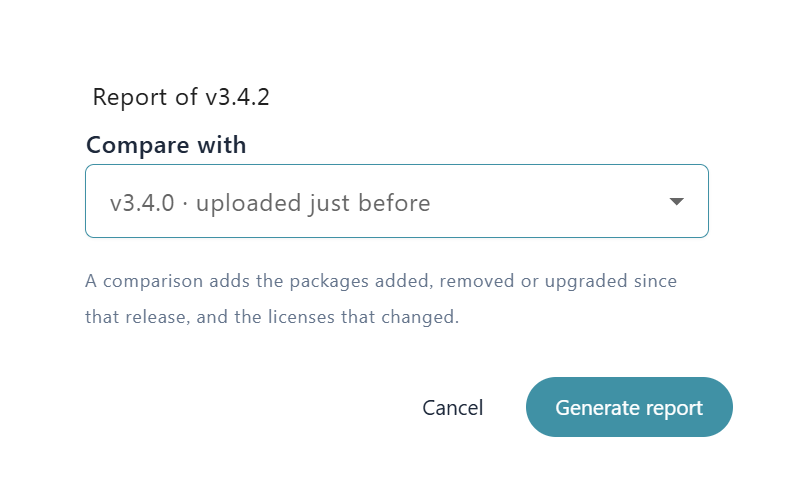
A PDF security report is generated from the Generate report button of the model page, for the selected release. The report can optionally be compared with another release of the same model, by default the one uploaded just before: the comparison adds the packages added, removed, or upgraded since that release and the licenses that changed. Only one report at a time can be generated for each release.
Each report contains, among others:
- the tools and vulnerability sources used for the analysis, and the manufacturer details;
- a summary of the release, with its packages, findings, and risk score;
- the classification of the findings by assessment state and severity, split between System and App;
- the comparison with the selected release, when requested;
- the full list of packages with their licenses and risk score, and a license summary;
- the findings still to triage and the assessed ones;
- statements on the allocation of responsibilities, CRA compliance, SBOM completeness, scan method, and point-in-time validity.
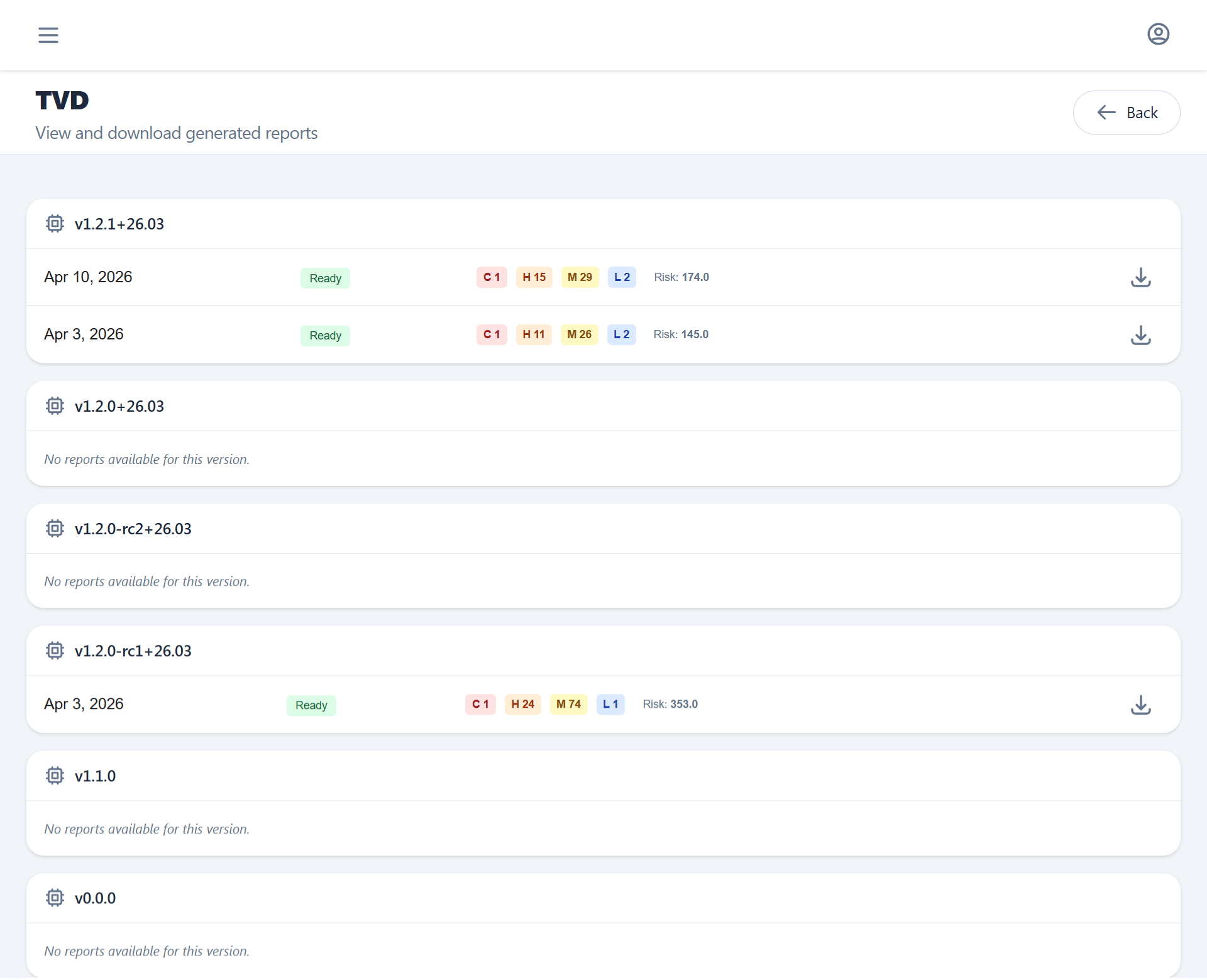
The Reports section lists the tracked models. Opening one lists its releases with their open findings, and expanding a release shows its reports. Since reports are generated asynchronously each one shows its status (generating, ready, or failed), when it was generated, the release it was compared with, and the findings and risk score as they were at generation time, suppressed included. Ready reports can be downloaded as PDF.
Alerts
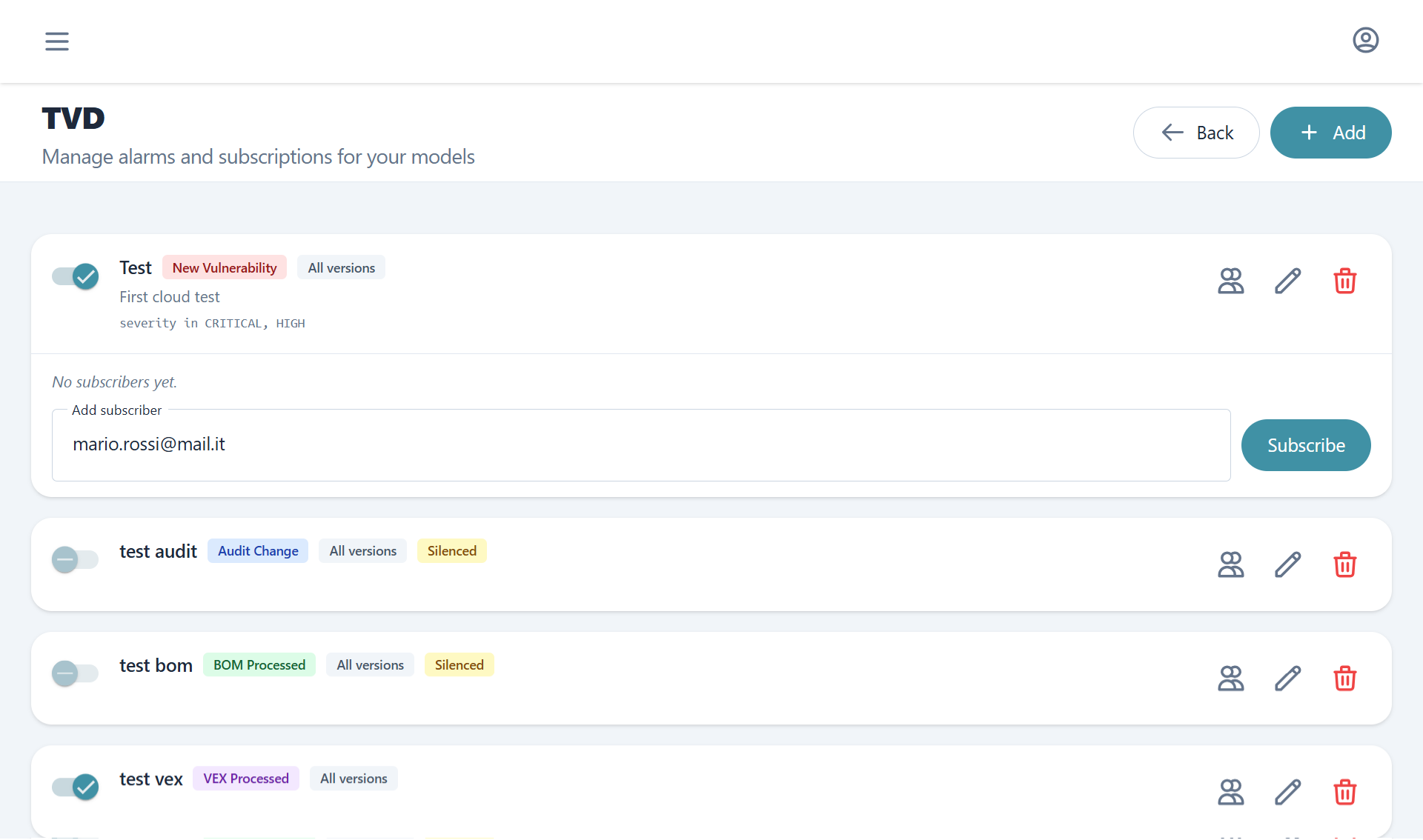
Alarms send email notifications when a tracked release of a model records a relevant event. For guidance on configuring alarms as part of an ongoing firmware maintenance practice, see SBOM Tracking.
The Alerts section lists the tracked models. Opening one lists its alarms, each showing its alert type, the releases it watches, and its subscribers. Each alarm can be silenced and enabled again with its toggle, edited, or deleted.
Alerts not enabled
Alarms must be enabled for each model. If the page reports that alerts are not enabled for a model, contact support to have them enabled.
Supported alert types:
| Alert type | Trigger |
|---|---|
| New vulnerability | A vulnerability is found in a release after its upload. The findings an SBOM upload brings in do not count |
| Audit change | A user changes the assessment state or the suppression of a finding. A VEX upload does not count |
| SBOM processed | The SBOM of an upload has been processed |
| VEX processed | The VEX of an upload has been processed |
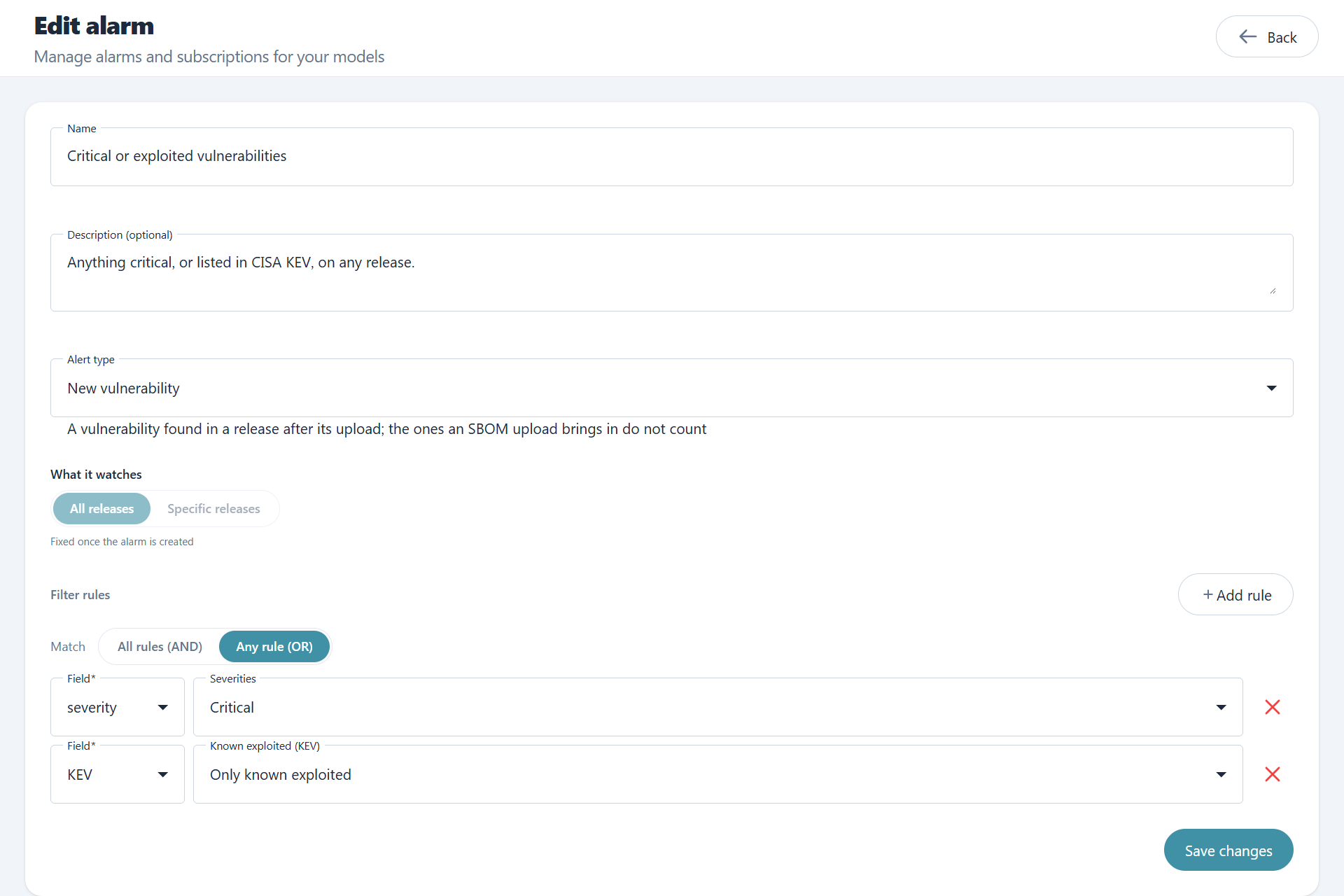
When creating an alarm you choose what it watches: either all the releases of the model or a specific set of them, pre-releases included. This choice is fixed once the alarm is created, while the set of specific releases can still be changed.
New vulnerability and Audit change alarms can also be narrowed with filter rules on severity (one or more levels), CVSS score (from 0 to 10), EPSS probability (from 0 to 1), and KEV (only known exploited, or only not known exploited). Rules are combined so that either all of them or any of them must match. Without rules, every event of the chosen type triggers the alarm.
Each alarm can have multiple subscribers, who receive its email notifications. Users can subscribe or unsubscribe themselves, while users with enough permissions can add or remove any email address.
Events matched by the same alarm on the same release within 15 minutes are grouped and sent as a single email, listing all of them.
Scope your alarm rules carefully
A broad or unfiltered New vulnerability rule that covers every release of a model can still produce a large number of notifications when the vulnerability databases disclose many new CVEs at once. Keep rules narrow, for example by raising the severity, CVSS, or EPSS threshold, by restricting them to known exploited vulnerabilities, and by watching only the releases you actively maintain, so notifications stay actionable.