Automated Builds with Embedded Manager
The Embedded Manager provides a streamlined way to build firmware directly from the ToloMEO cloud platform, without managing build infrastructure locally. This flow covers starting a build, following it through its pipeline and tests, checking its vulnerabilities, and promoting the result to an OTA release.
Involves: Embedded Manager, PMS, Cybersecurity
Step 1: Select or create the project
From the Embedded Manager landing page, open the project of the model to build. The project page shows the firmware detail of the model and the list of its past and running builds.
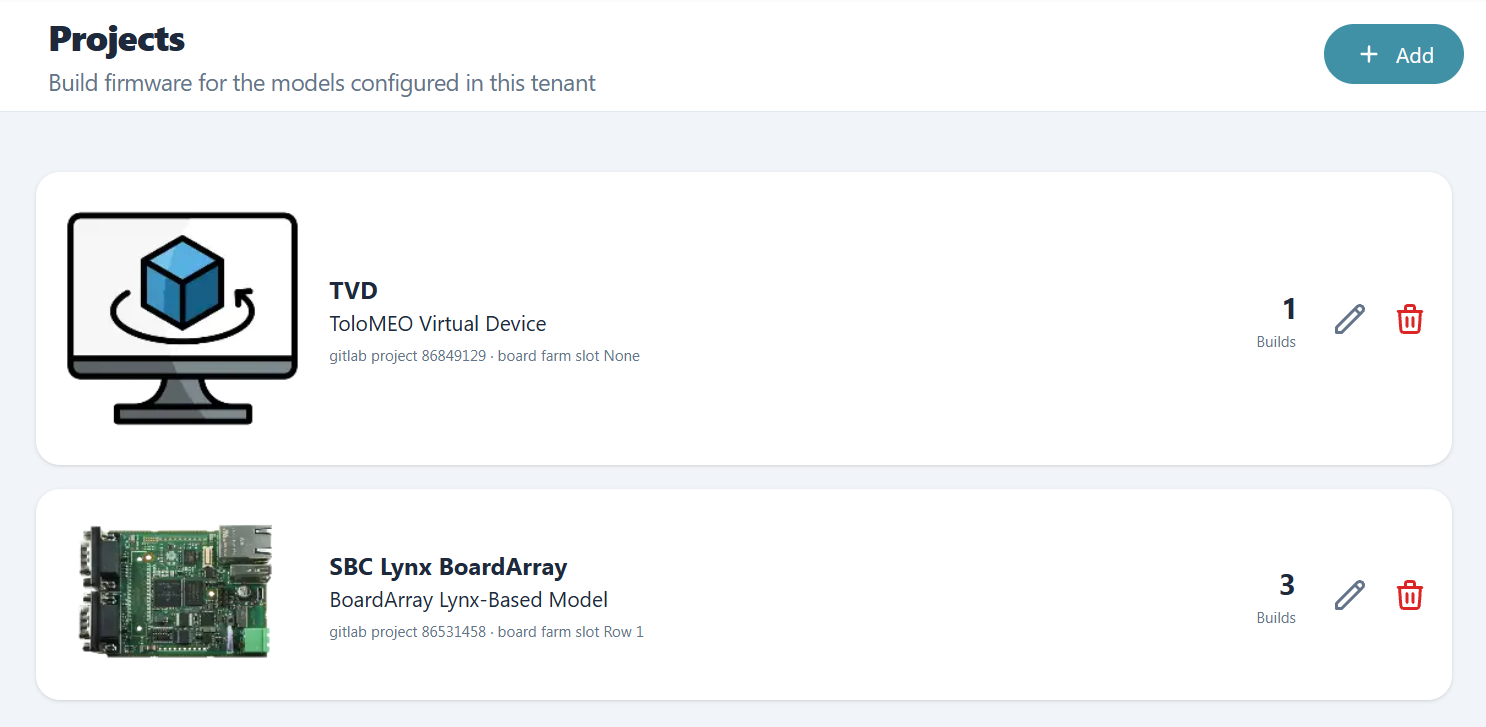
If the model has no project yet, contact DAVE to create one. When DAVE develops the BSP this is part of the delivery, while a customer-maintained repository requires some preparation first. When setting up the project you can also choose to run builds on your own infrastructure, so that source code and artifacts never leave your control. See Infrastructure and data ownership.
Step 2: Start and configure a new build
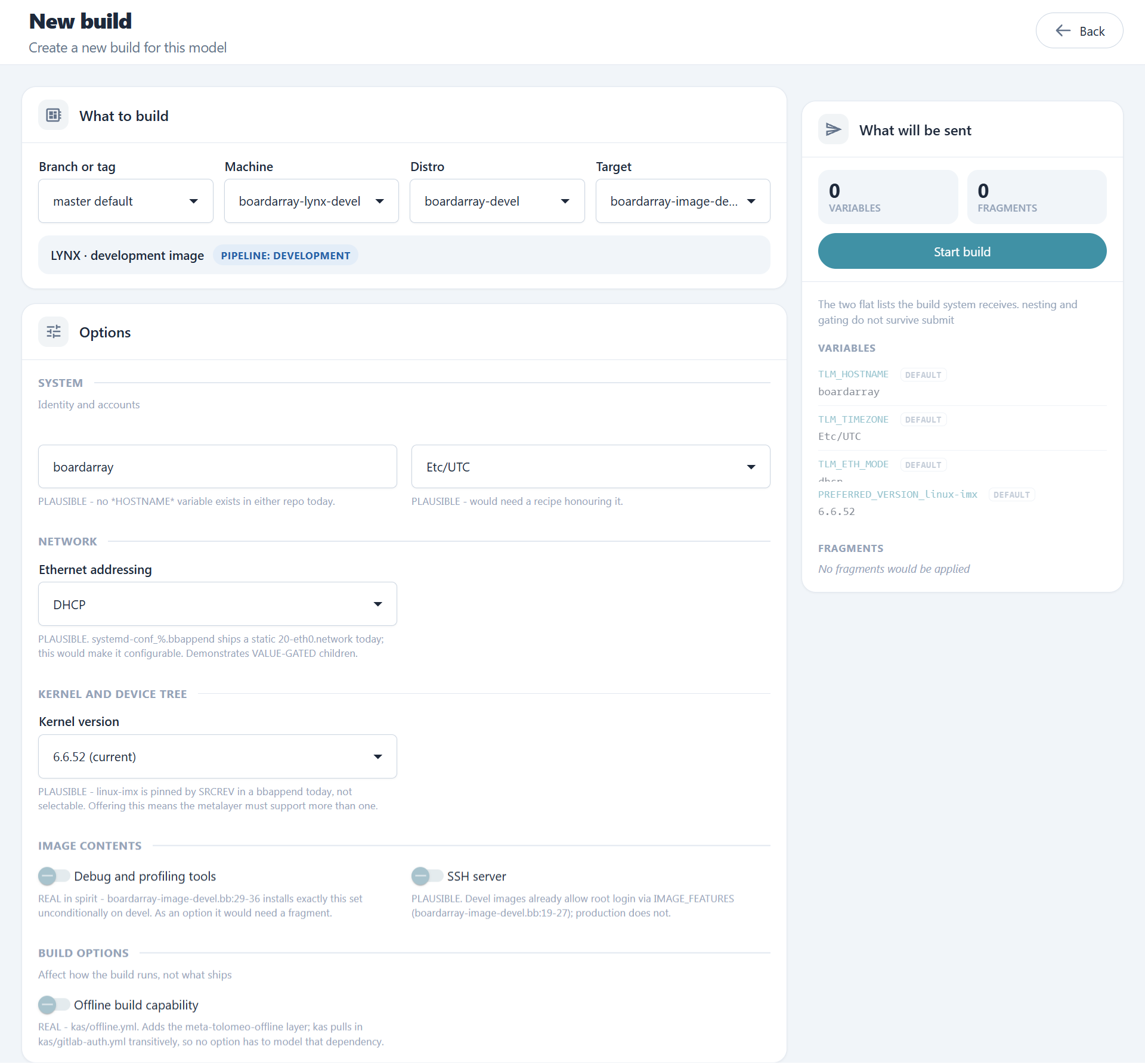
From the project page click New build, then select the branch or tag to build from. The form loads the build configuration stored in that branch or tag, so only what it supports is offered.
Select the machine, distribution and target. Together they identify the combination to build, and the pipeline it runs is shown next to it:
- Development for development images, tested in an emulator and not signed
- Production test for production images signed with development keys
- Production for production images signed with both development and production keys
Fill in the options of the combination. Defaults are already set, required fields must be filled before starting, and sensitive values such as passwords are masked and never logged or stored.
Review the summary in the side panel and click Start build.
Step 3: Monitor the pipeline
The new build appears in the project build list. Open it to follow its progress on the build detail page, which refreshes on its own while the build runs.
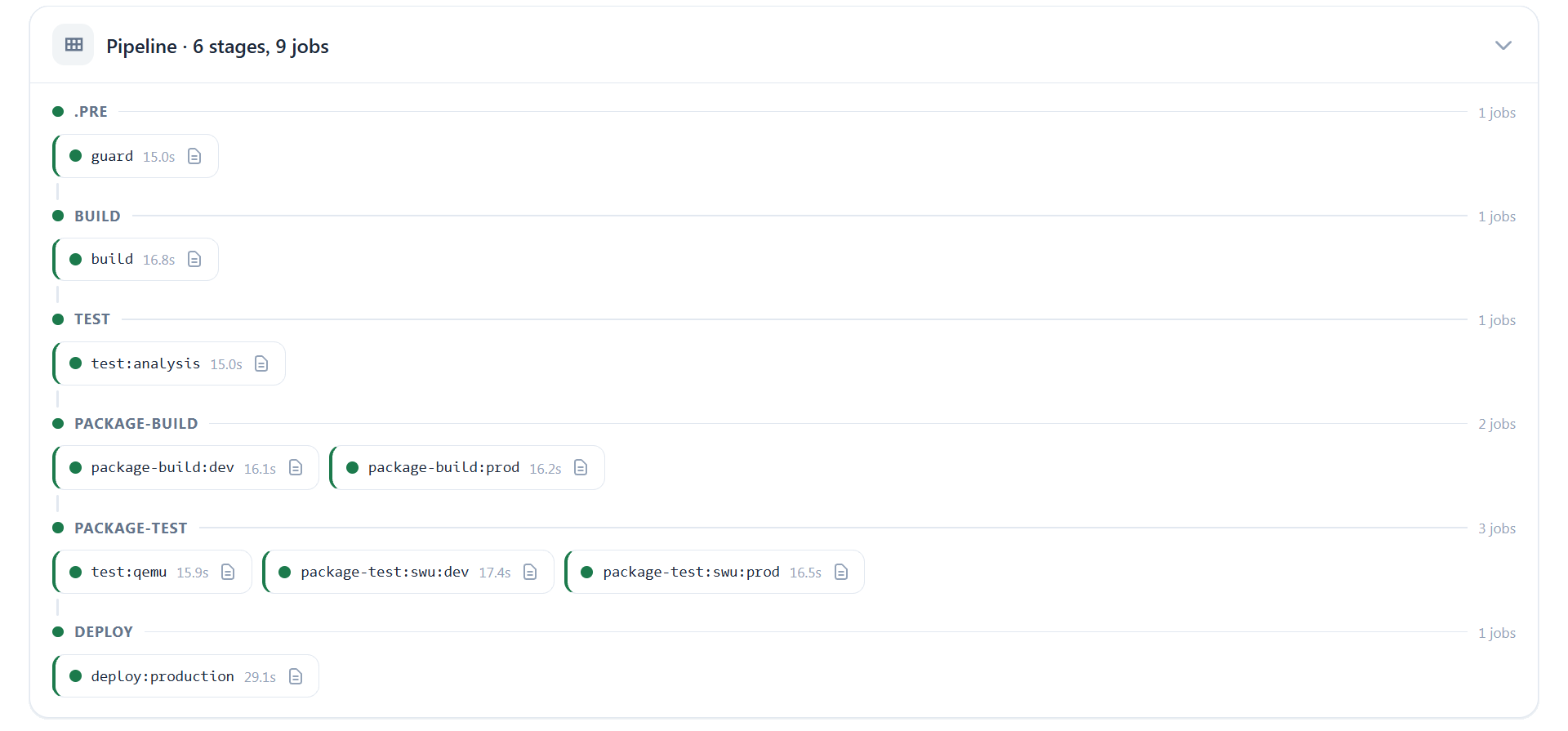
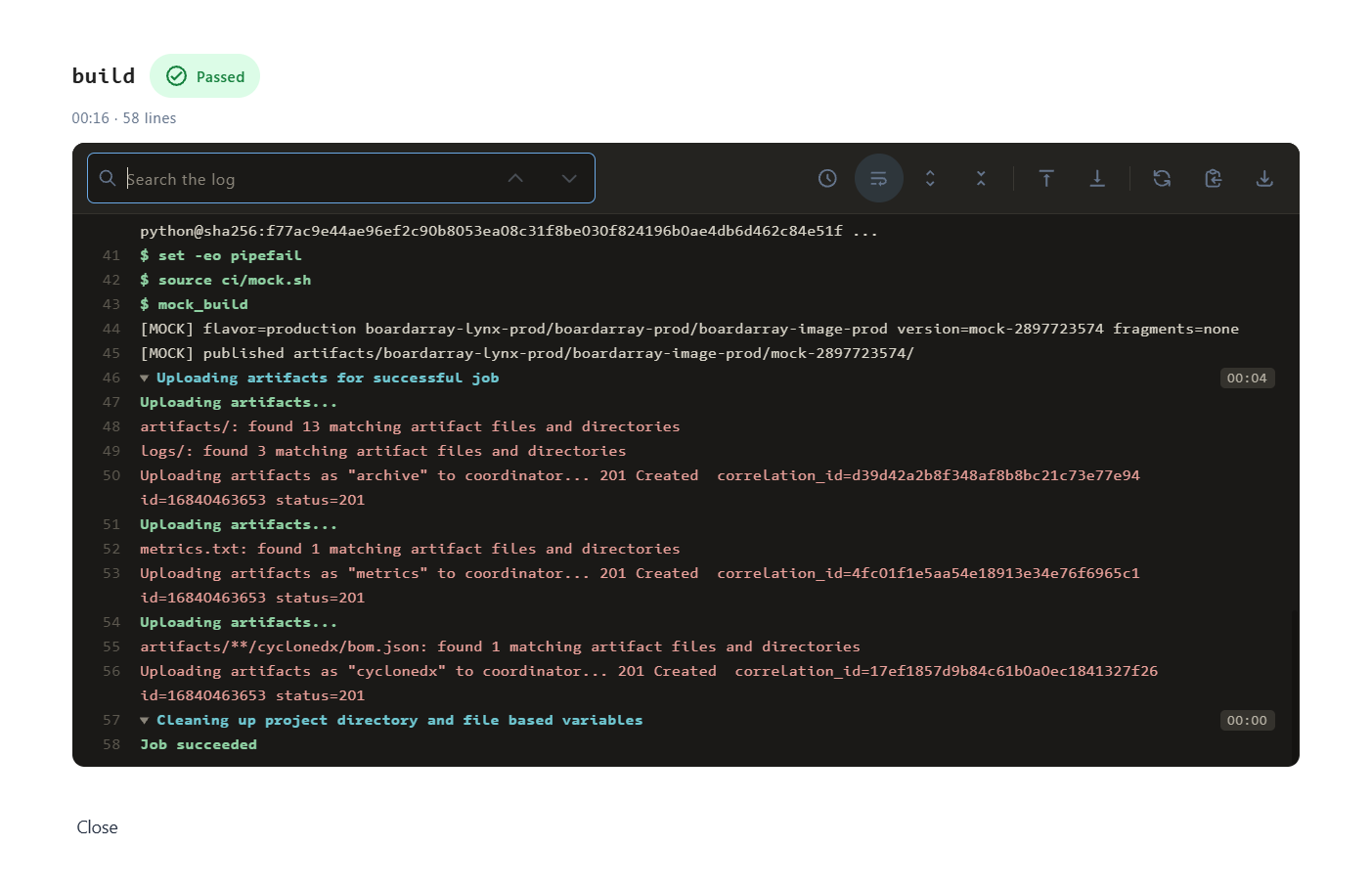
The Pipeline section shows each stage and its jobs. Click a job to open its log, which follows the job live and can be searched, copied or downloaded. If a job waits for a manual action, a build shows the Manual status and the job can be started from its entry in the pipeline.
Step 4: Sign for production
In development
Production signing through the key management platform is not yet available.
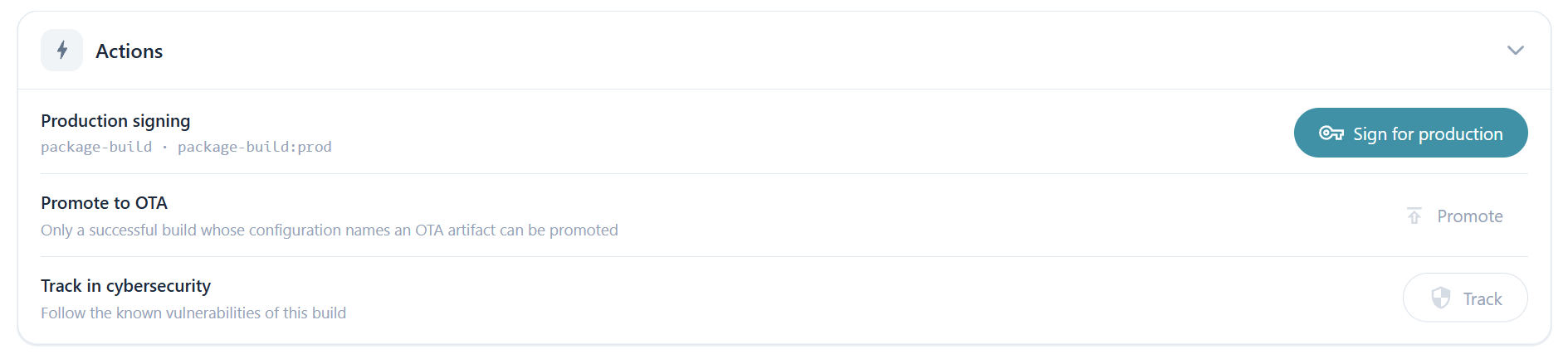
A production build pauses before signing with production keys. From the Actions section click Sign for production and paste the signing token issued for this build by the key management platform. The token is used once by the signing job and is never stored; a wrong or expired token fails the build.
See Hardening and Secure Boot for how signing fits in the chain of trust.
Step 5: Review test results and artifacts
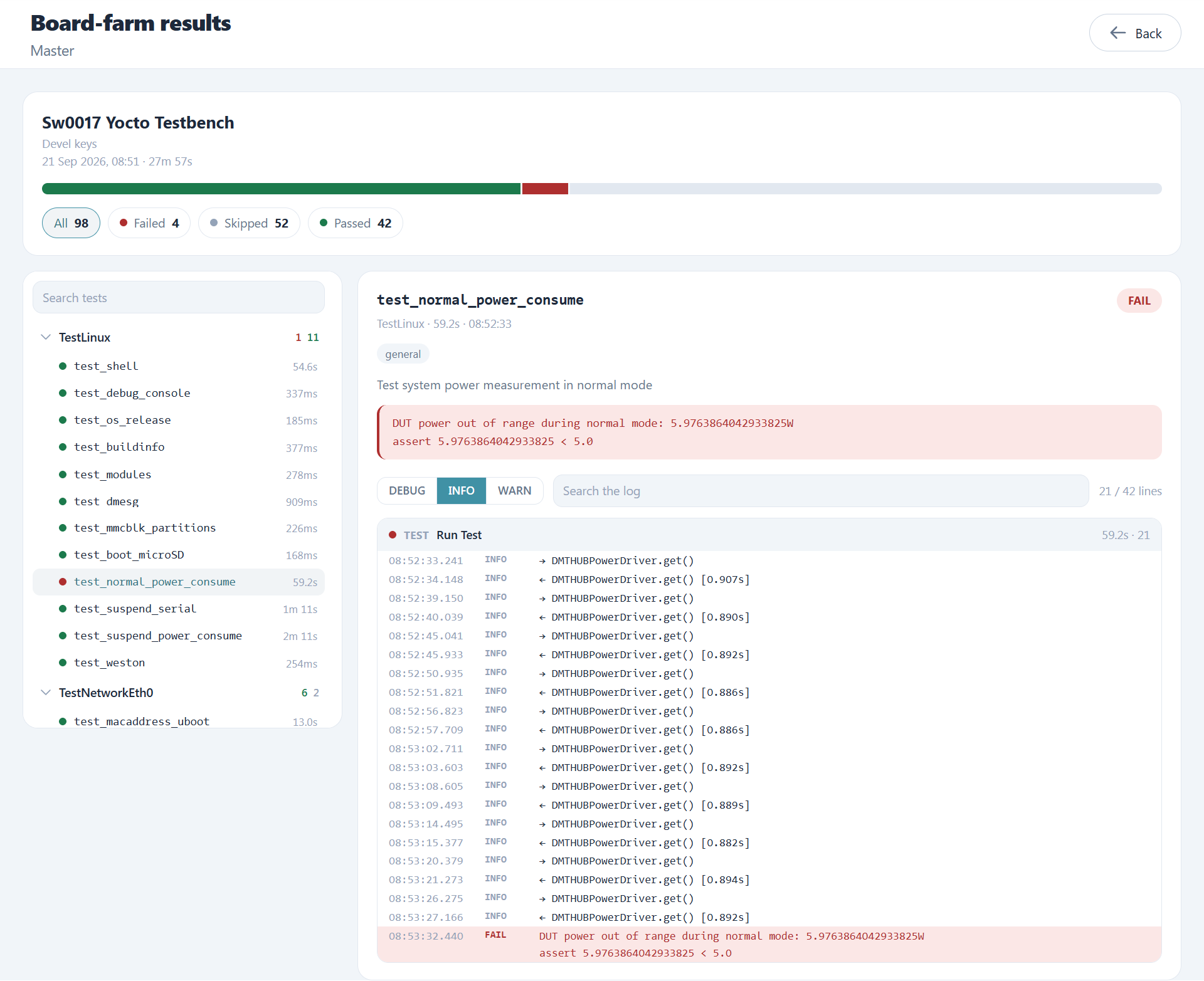
Once the build completes, the Board-farm results section summarizes the hardware tests run on physical boards, separately for the package signed with development keys and the one signed with production keys. Click Open full results to inspect every test, filter by outcome, and read the log of a failed test.
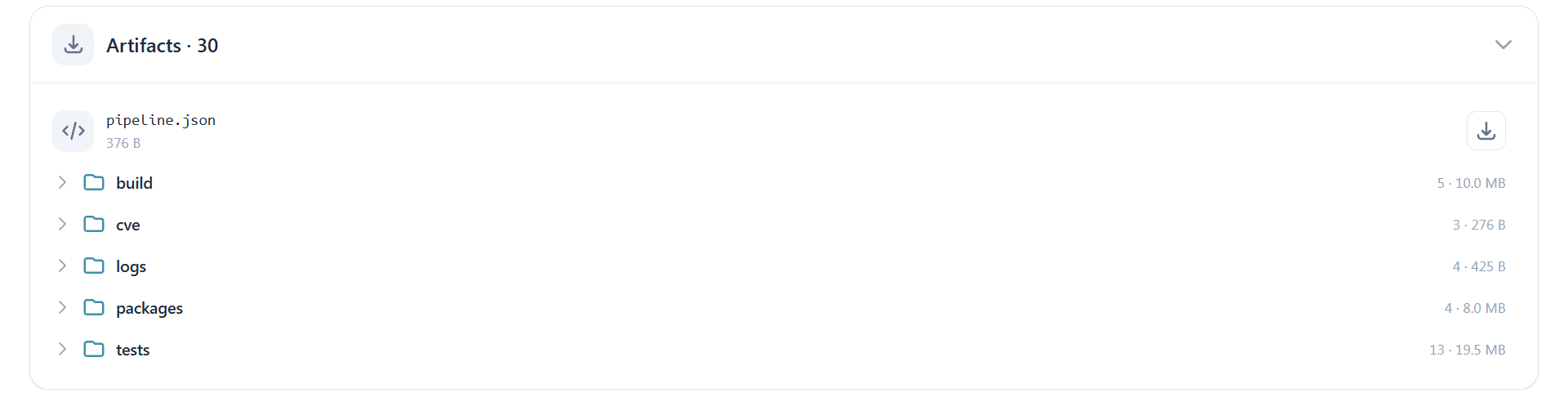
The Artifacts section lists the files produced by the build, such as images, update packages, SBOMs and logs, which can be downloaded individually.
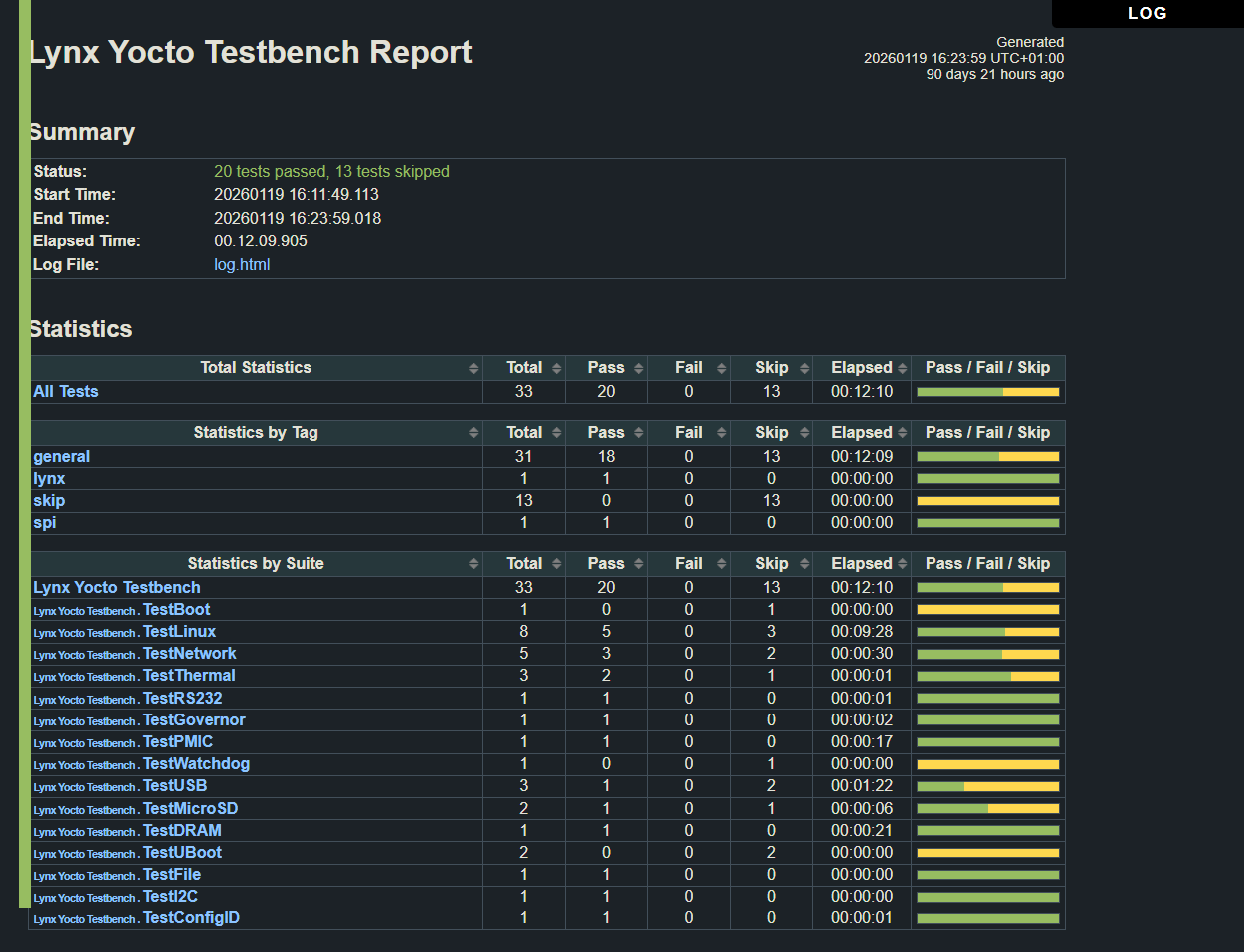
The board-farm test reports are among the artifacts too. Download them to keep a record of a run or to inspect it offline in a browser.
Step 6: Check the vulnerabilities
Before promoting a release, make sure the firmware does not ship critical vulnerabilities.
Work in progress
Tracking a build in Cybersecurity directly from the Embedded Manager is under active development.
Track in the Actions section will flag the build SBOM for tracking in Cybersecurity. Until then, download the SBOM and VEX files from the build artifacts and upload them from the Cybersecurity page, as described in the SBOM Tracking flow. Review the findings and triage them before moving on.
Step 7: Promote to OTA
Once the build is tested and free of critical vulnerabilities, click Promote in the Actions section. In the dialog, confirm the update package to publish and enter the release details: version, release notes, the optional minimum and maximum compatible versions, and whether the update is mandatory.
Promoting creates an inactive firmware release on the model in PMS Models and records you as its OTA approver. Activate it from the model page to start delivering it to devices, as described in the OTA Release flow.