Embedded Manager
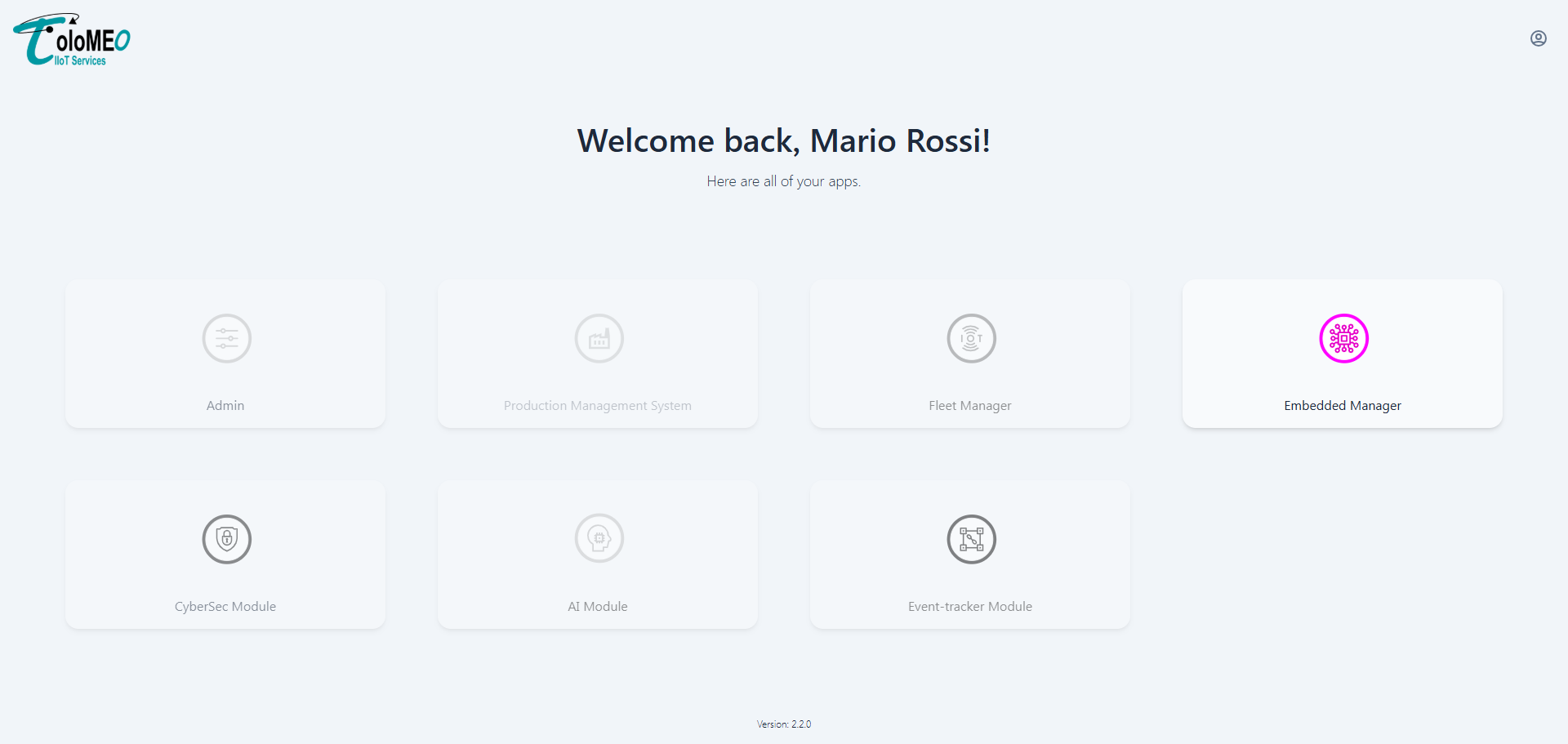
The Embedded Manager is the firmware build interface within ToloMEO. It allows engineers to build firmware for a PMS Model directly from the cloud platform, follow the build pipeline and its tests, and promote successful artifacts to OTA delivery, without managing any build infrastructure locally.
See the Automated Builds with Embedded Manager flow for the full sequence from starting a build to delivering it to devices.
Projects
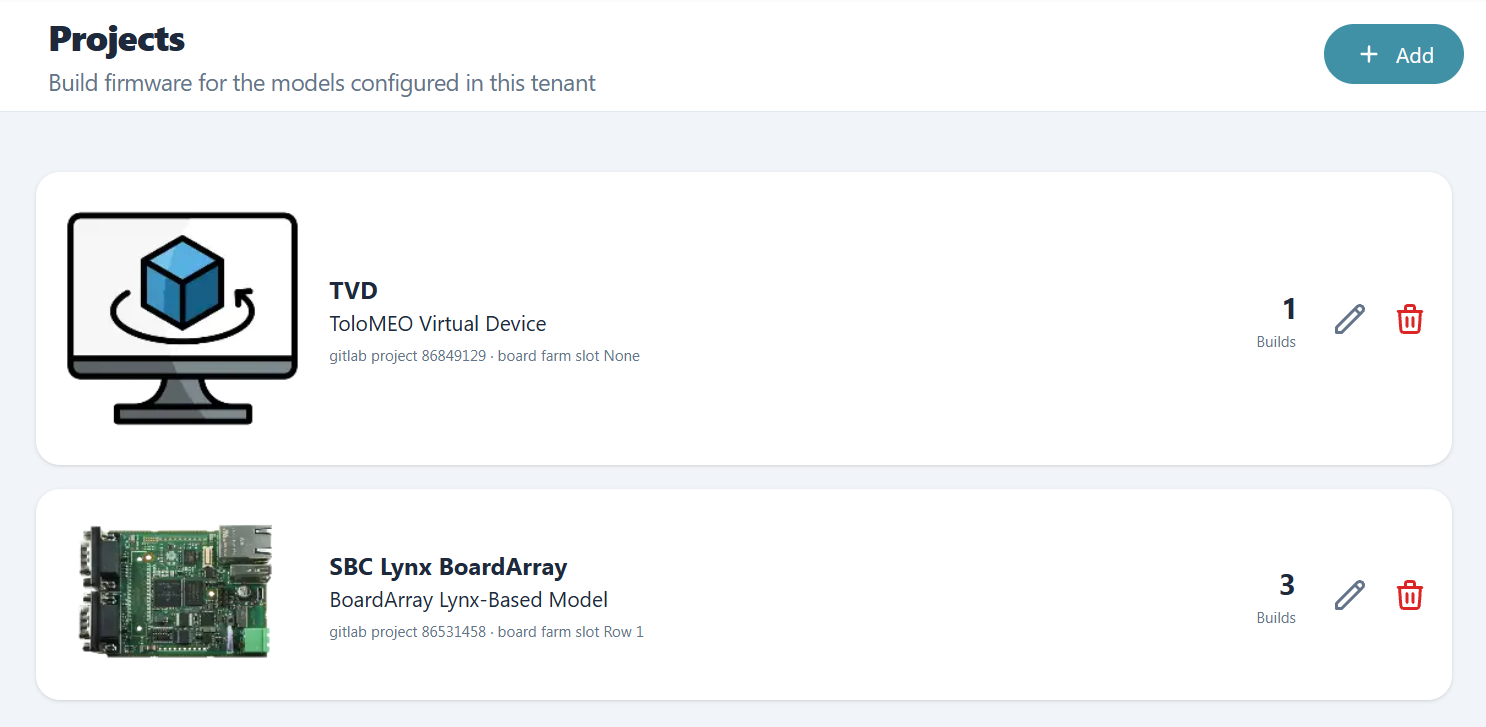
The Embedded Manager landing page lists the projects available in the tenant. A project links a PMS model to the firmware repository it is built from and to the storage where its build artifacts are kept. Each model has at most one project, and each project card shows the model, the number of builds, and the board farm slot used for hardware tests.
Projects are set up by DAVE on behalf of the customer:
- When DAVE develops the BSP, the project is created as part of the delivery.
- When the customer maintains its own firmware repository, some preparation is required on the repository side. Contact DAVE to have it enabled.
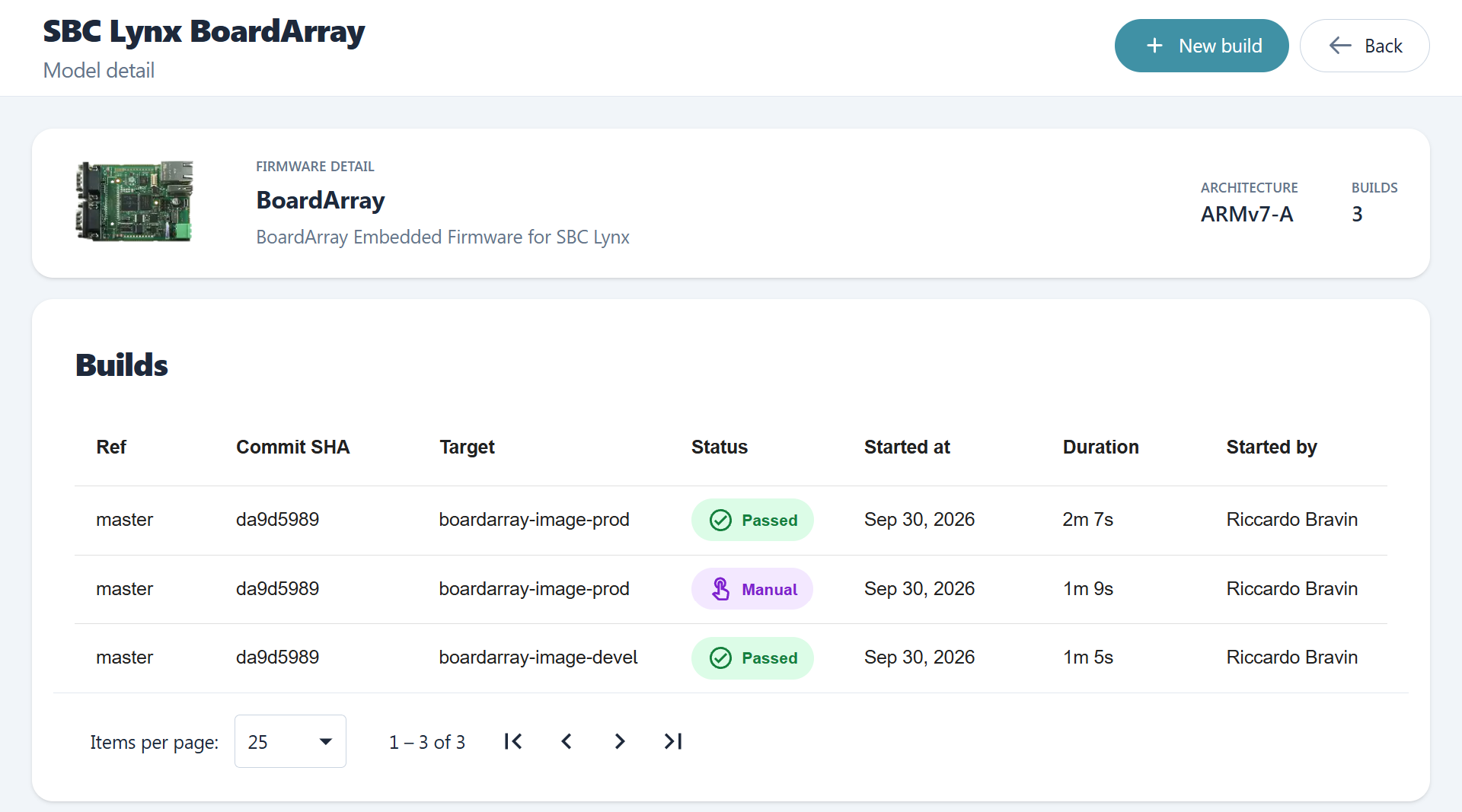
Opening a project shows the firmware detail of the model and the list of its builds, with the branch or tag, commit, target, status, start time, duration and the user who started each one.
Infrastructure and data ownership
The Embedded Manager drives the builds, but the infrastructure behind them does not have to be DAVE's. With DAVE's help, customers can host their own build infrastructure, so that their source code never goes through DAVE's servers. In the same way, build artifacts can be kept in a customer-owned S3-compatible storage, either self-hosted or from a provider of their choice, and production signing can rely on the customer's own key management platform.
In this setup DAVE acts as a contractor: it sets up the infrastructure and connects it to the platform, while the customer keeps full control of its code, artifacts and keys.
In development
Integration with the key management platform for production signing is not yet available. See Production signing.
Build configuration
What can be built for a project, and what can be changed when starting a build, is declared in a configuration document stored in the firmware repository itself. Since it lives alongside the firmware sources, each branch or tag carries the configuration that matches its code. The document defines:
- Combinations
- The set of viable builds, each one a machine, a distribution and a target. A combination can be limited to specific models, so that only what makes sense for the project's model is offered.
- Options
- The settings a user may change for a combination, such as account passwords, image contents or build behaviour. Options are organized in groups, may be required, and may be marked as sensitive, in which case their value is masked and never logged or stored.
- Pipelines
- The kind of pipeline each combination runs. The standard pipelines are listed below; other pipelines can be supported when a product needs them.
| Pipeline | Description |
|---|---|
| Development | Builds the development image and runs the automated test suite in an emulator if any exist. No signing is applied. |
| Production test | Builds the production image with extra packages, verifies it boots, then packages and signs it with development keys. |
| Production | Builds the production image once and packages it with development keys and, after the signing approval, with production keys. |
Every pipeline ends by publishing its artifacts to the project storage.
New build
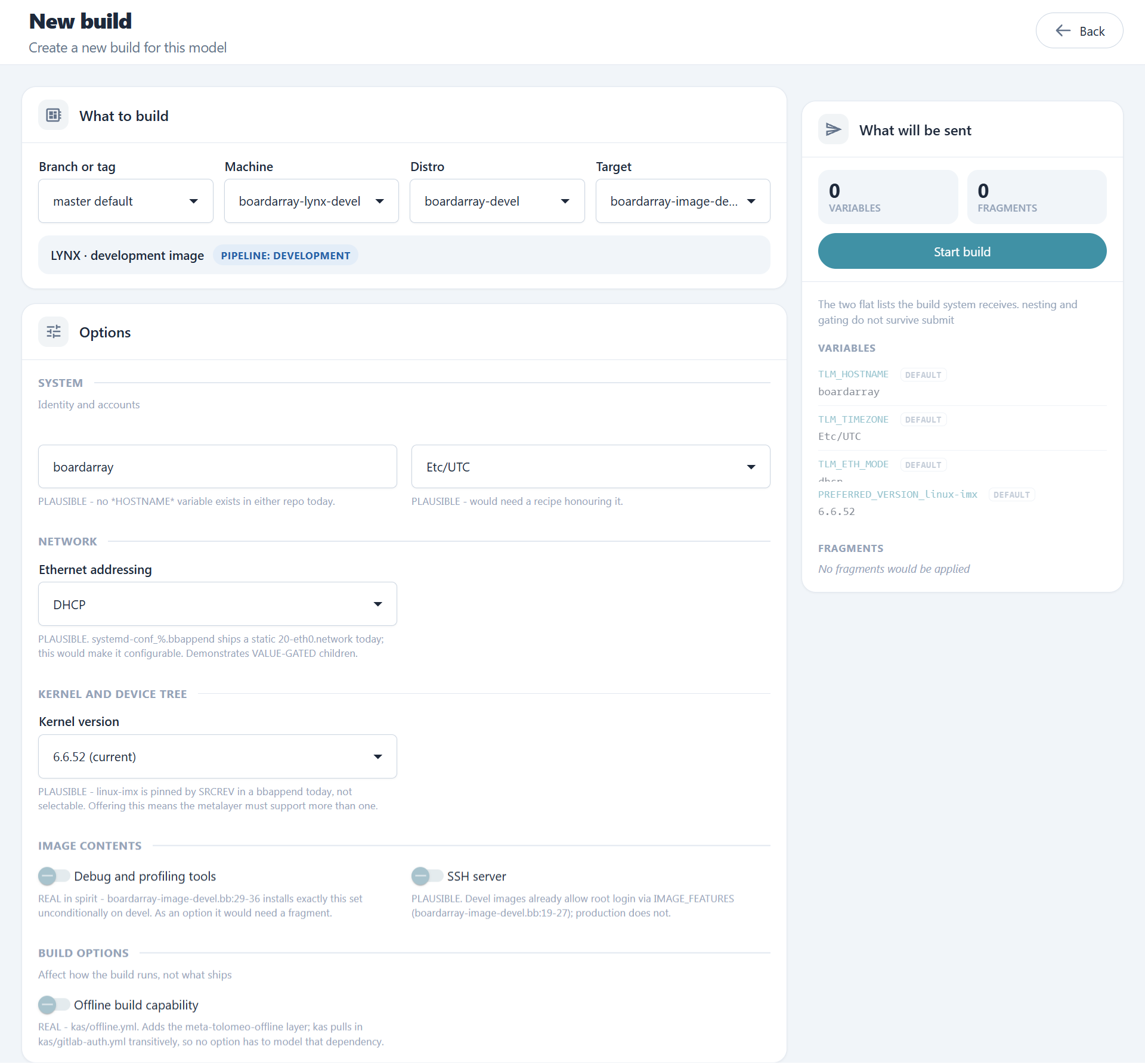
The new build page is generated from the configuration document of the selected branch or tag. The user picks the branch or tag, then the machine, distribution and target, which together select a combination and its pipeline. The options of that combination are then shown, grouped in sections, with their default values already filled in.
The side panel summarizes what will be sent to the build system, so the final configuration can be checked before clicking Start build.
Build detail
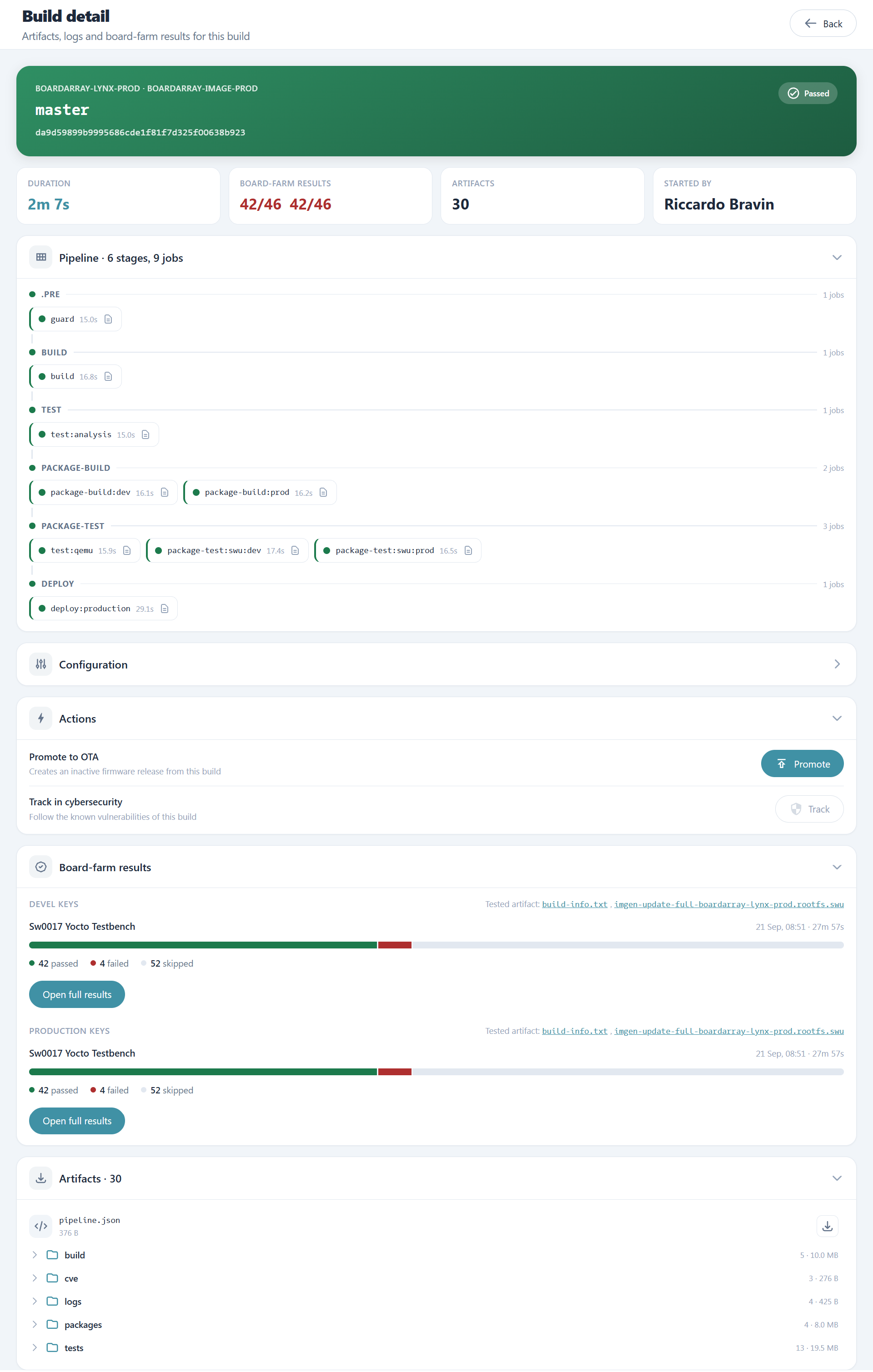
The build detail page collects everything about a single build. The header shows the combination, the branch or tag, the commit and the current status, and refreshes on its own while the build is running. Below it, a summary shows the duration, the board farm results, the number of artifacts and who started the build.
- Pipeline
- The stages of the build and the jobs within each stage, with their status and duration. Clicking a job opens its log, which updates live while the job runs and can be searched, copied or downloaded. Jobs that wait for a manual action can be started from here.
- Configuration
- The options the build was started with.
- Actions
- The operations available on the build: production signing, vulnerability tracking and promotion to OTA. Each one is described below.
- Board-farm results
- The results of the hardware tests run on physical boards, shown separately for the package signed with development keys and for the one signed with production keys. Open full results shows every test with its log.
- Artifacts
- The files produced by the build, such as images, update packages, SBOMs, logs and test reports, browsable as a folder tree and downloadable individually. Downloaded board-farm test reports can be opened offline in a browser.
Production signing
In development
Production signing through the key management platform is not yet available. Currently keys get stored in a secure storage and fetched directly without going through the platform.
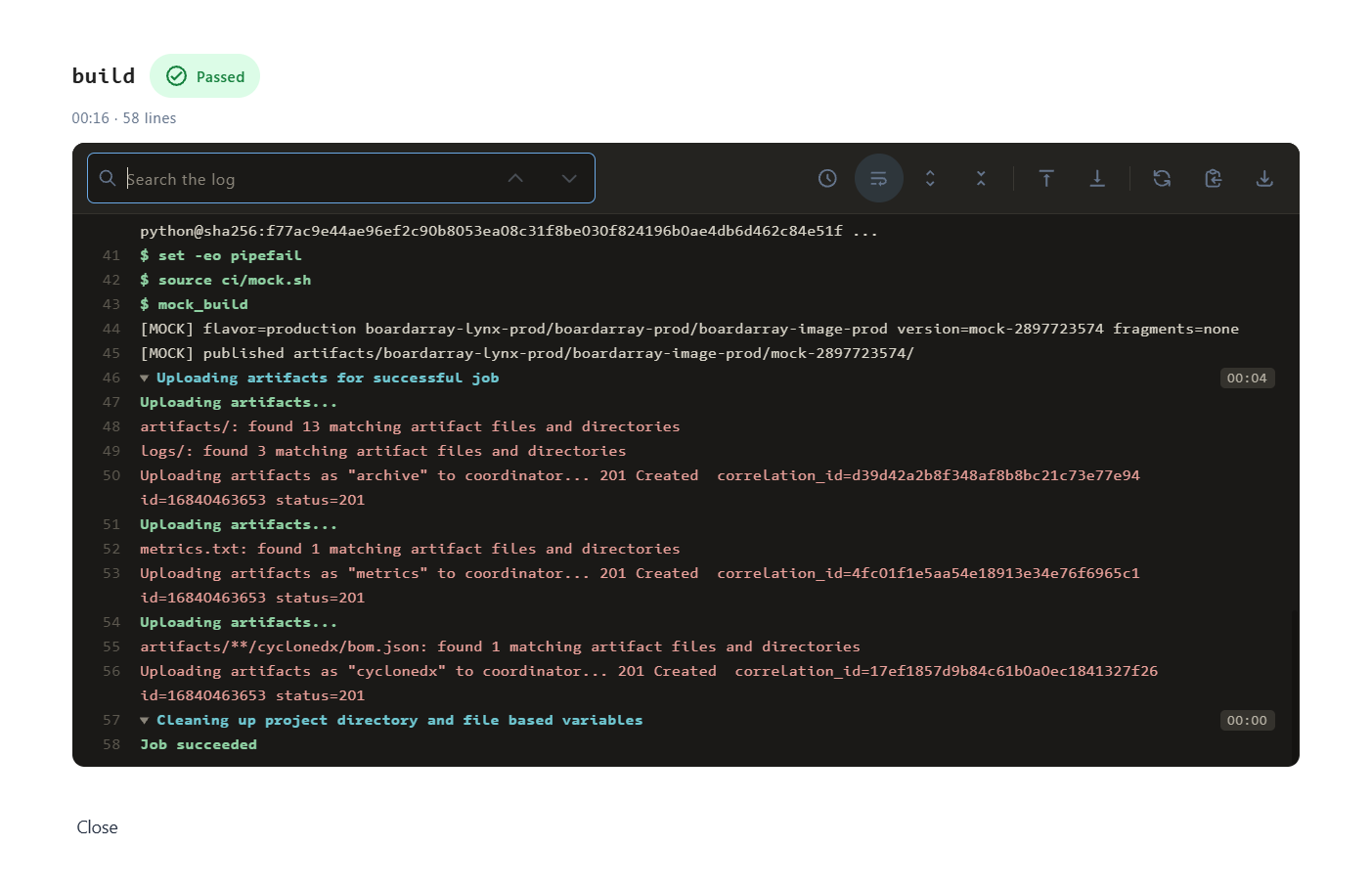
A production pipeline stops before signing with production keys and waits for an approval. From the Actions section, Sign for production asks for a signing token issued for this build by the key management platform. The token is used once by the signing job and is never stored.
Track in cybersecurity
Work in progress
Tracking a build in Cybersecurity directly from the Embedded Manager is under active development.
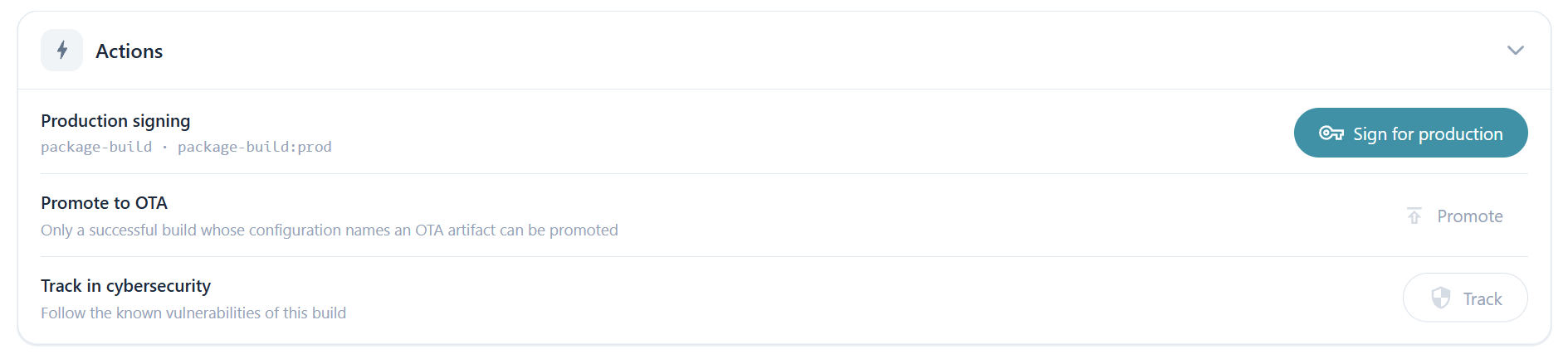
A completed build SBOM can be flagged for tracking inside the Cybersecurity module. Until then, the SBOM and VEX files can be downloaded from the build artifacts and uploaded from the Cybersecurity page. See the SBOM Tracking flow for the upload, triage, and reporting steps. Checking for critical vulnerabilities should happen before a build is promoted to OTA.
Promote to OTA
A successful build can be promoted to OTA when its configuration names an update package to publish. Promoting creates a new firmware release on the project's model in PMS Models, with the version, release notes and compatibility settings entered in the promotion dialog, and records the user as the OTA approver.
The release is created inactive: devices are not notified until it is activated from the model page. See the OTA Release flow for the full delivery sequence.
Board-farm results
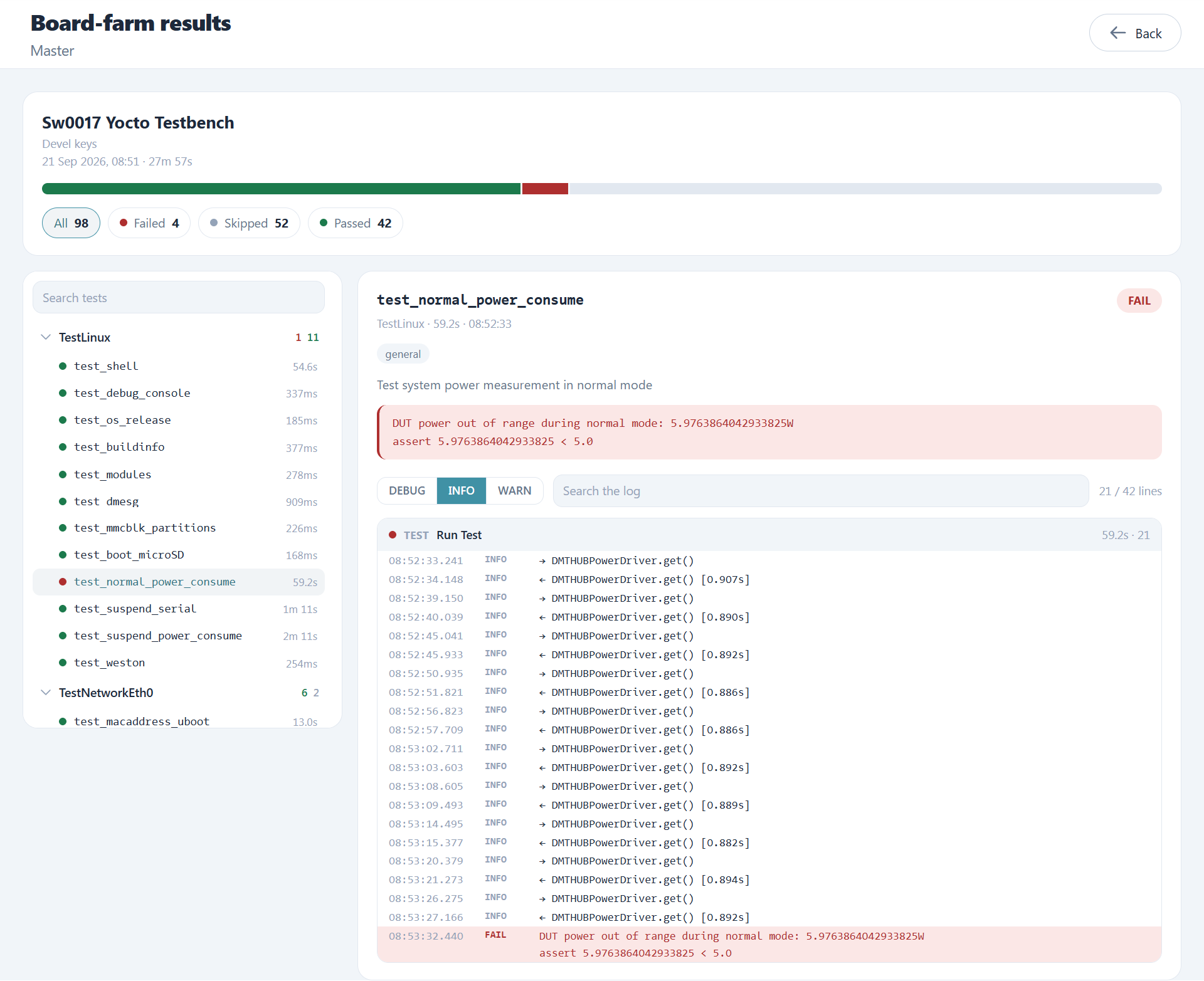
The board-farm results page shows one test run in full. A summary bar counts the passed, failed and skipped tests and can be used to filter them. Tests are grouped by suite and can be searched by name; selecting one shows its description, the reason of a failure, and its log, which can be filtered by level and searched.
Views
| View | Description |
|---|---|
| Projects | Projects available in the tenant, one per model |
| Build list | Firmware detail of the model and all its builds with status and metadata |
| New build | Form to pick a branch or tag, a combination and its options |
| Build detail | Pipeline, logs, configuration, actions, test results and artifacts of a build |
| Board-farm results | Every test of a hardware test run, with its log |