Control
The Control tab on the device detail page provides direct interaction with a single device. It groups three tools: an interactive device terminal, a form to send commands to on-device services, and a history of the messages exchanged with the device.
Device terminal
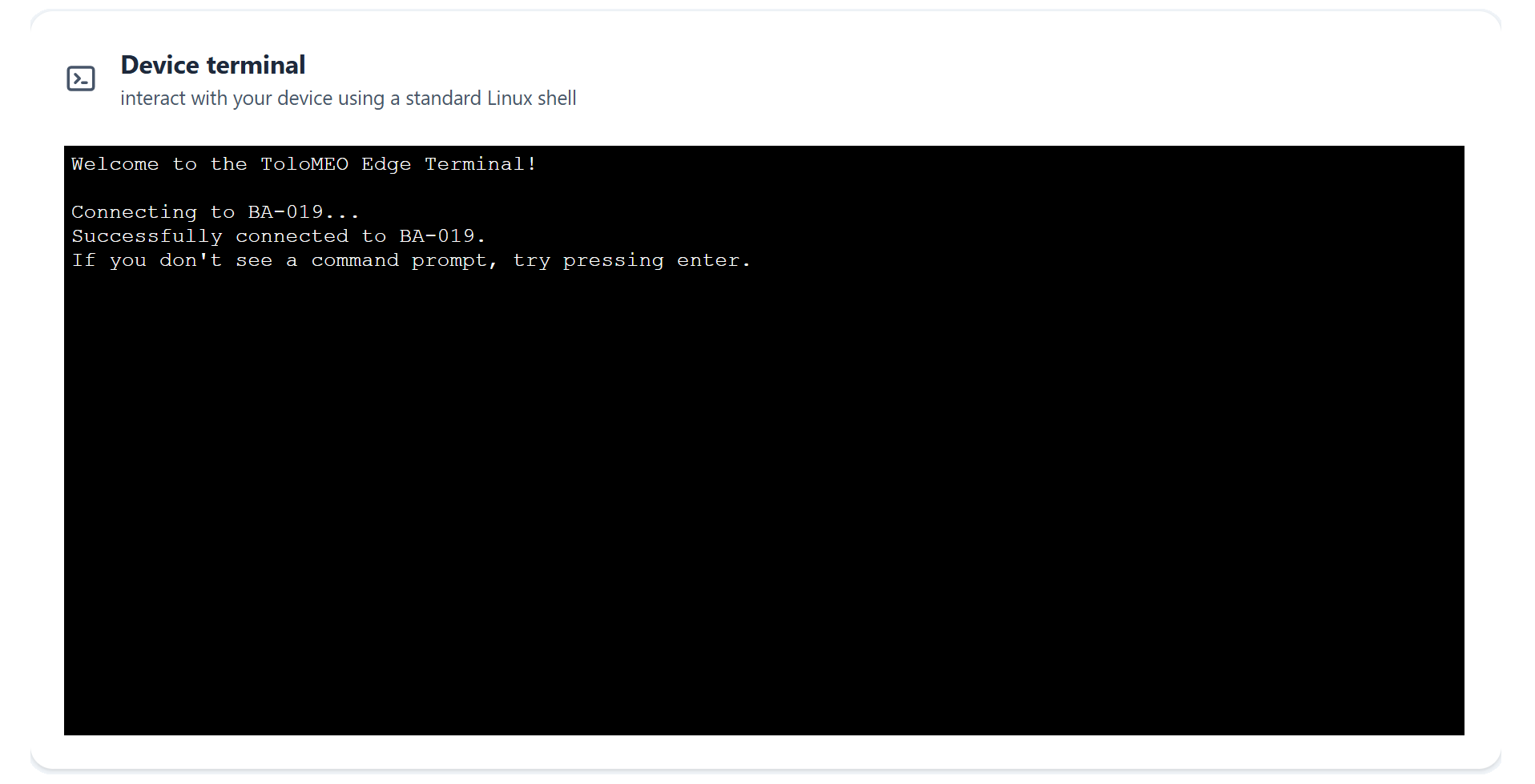
The device terminal opens an interactive Linux shell on the device over its control channel, letting operators run commands as they would over a local console. The connection is established when the tab is opened and retries automatically on transient failures. If the connection is lost, reload the page to reconnect.
Send command
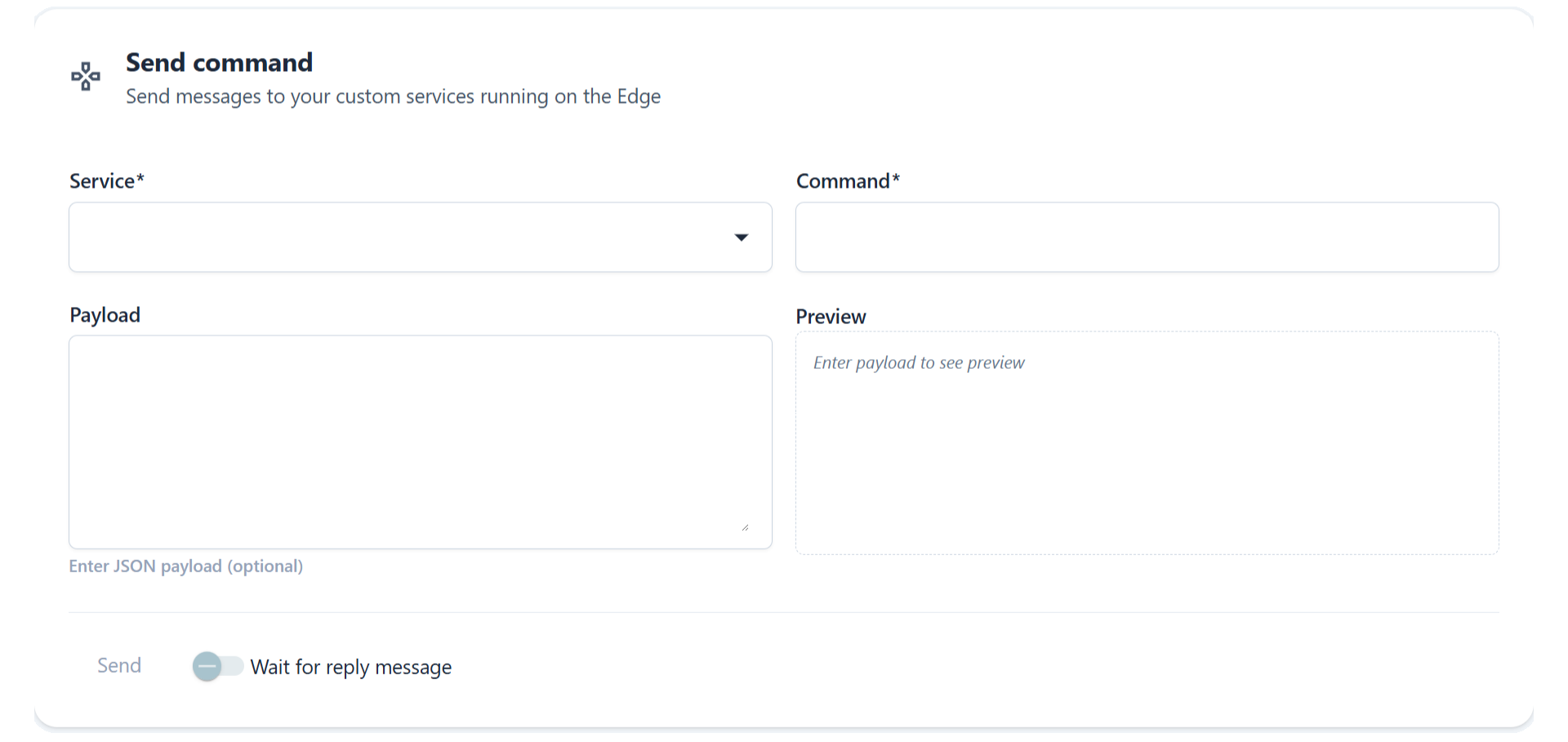
The command form sends a single message to a named service running on the device. The services
available are discovered from the device, and each exposes its own set of commands. This is the
path for interacting with on-device services such as custom py-tolomeo applications. See
IoT and Telemetry for how those services and their commands are
defined, and OTA Release for firmware update control from the device
detail page.
| Field | Required | Description |
|---|---|---|
| Service | Yes | The target on-device service. The list is discovered from the device itself |
| Command | Yes | The command name exposed by the selected service |
| Payload | No | A JSON body passed to the command. It is validated and previewed before sending |
Enabling Wait for reply message holds the request until the device returns a response, which then appears in the message history below.
Note
Available services and the commands they accept are defined by the firmware running on the device. A service must declare a command for it to be sent from here. See IoT and Telemetry for how services and commands are declared.
Command history
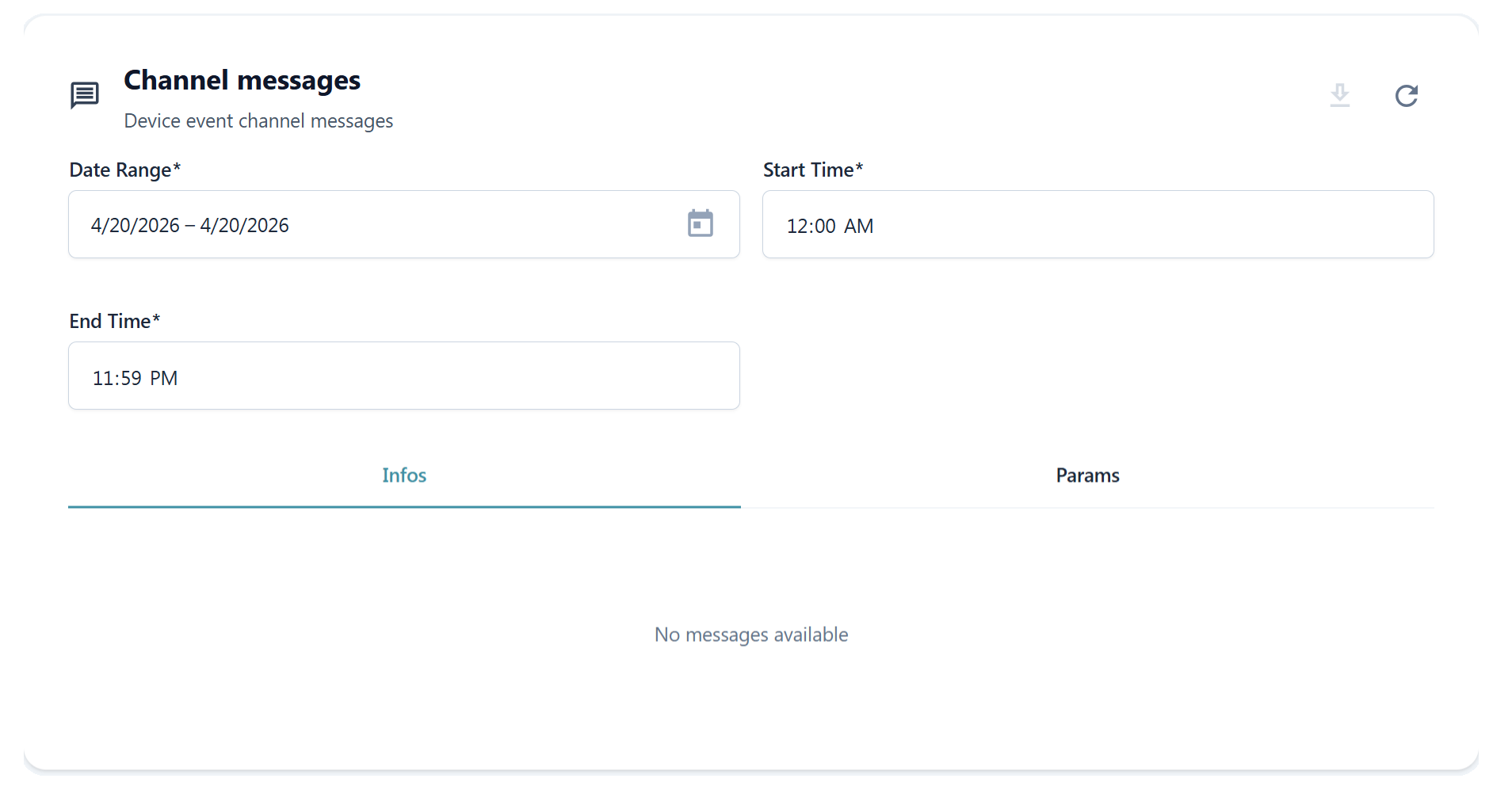
The channel messages card lists the messages exchanged on the device's event channel, including command responses. Messages are filtered by date range and start and end time, defaulting to the current day, and the view refreshes automatically when the filter changes. A single query returns at most 1500 messages; when that limit is reached a warning indicates the range was truncated and should be narrowed. The download button saves the raw messages for the selected range and tab as a JSON file.
Messages are split across two tabs, Infos and Params.
Infos
Informational messages report the device's own state. Each message is shown as a set of key and value pairs, with its timestamp displayed separately. A common example is the firmware and OTA status the device publishes:
| Key | Value |
|---|---|
| fwName | tlm-lynx |
| fwVersion | 0.1.0 |
| otaStatus | update_available |
| pendingFwName | BoardArray |
| pendingFwVersion | 1.1.1-rc2+26.03 |
The pendingFwName and pendingFwVersion keys appear only while an update is available. When no
update is pending the message carries just the running firmware name, version, and status (for
example an otaStatus of updated).
Params
Parameter messages carry one of two kinds of content, which the view distinguishes automatically.
Metric definitions describe the metrics the device reports. They are shown as a table, one row per metric:
| Metric | Unit | Type | Data type |
|---|---|---|---|
| glances_stats:cpu:total | % | Temporal | Number |
| glances_stats:cpu:cpucore | # | Temporal | Number |
The Type column is either Temporal or Incremental, and the Data type column is String,
Number, or Boolean.
Command responses are the replies a service returns to a command sent from the form above. They are shown as key and value pairs. For example, the response to an OTA update notification:
| Key | Value |
|---|---|
| id | swupdate |
| result | success |
| status | update_available |